How to change a language on mac – Wondering how to change a language on your Mac? Look no further! This guide will take you through the process step-by-step, ensuring a smooth and effortless transition.
Whether you’re a seasoned Mac user or a newbie, changing the display language or adding additional languages is a breeze with our clear instructions and troubleshooting tips.
System Preferences
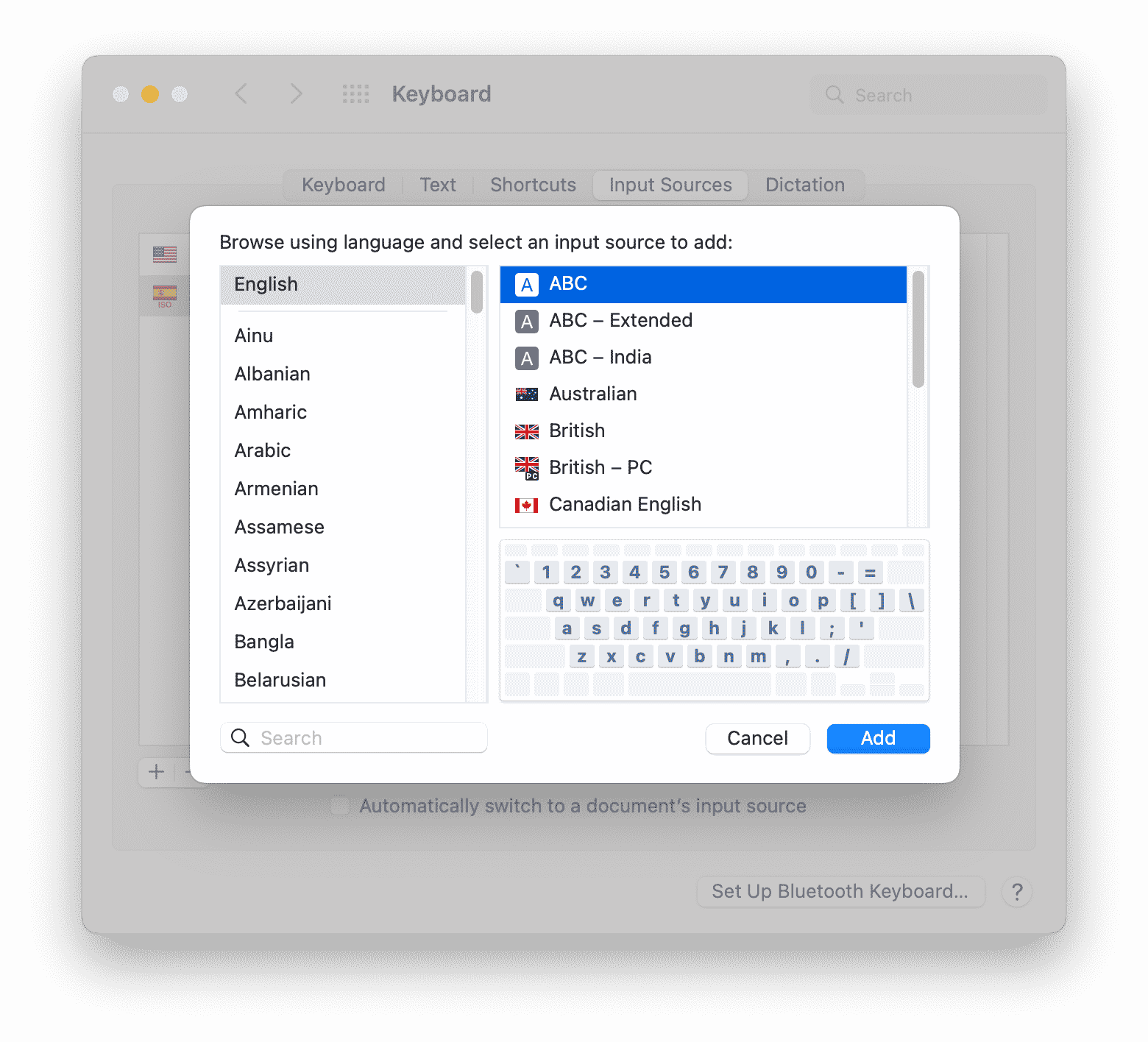
System Preferences is the control panel for macOS, where you can manage various system settings. It provides a centralized location to customize your Mac’s appearance, behavior, and preferences.
To access System Preferences, click on the Apple menu in the top-left corner of your screen and select “System Preferences” from the drop-down menu.
Navigating to “Language & Region”
Once in System Preferences, click on the “Language & Region” icon. This section allows you to manage the language settings for your Mac, including the primary language used for menus, apps, and documents.
Options in “Language & Region”
Within the “Language & Region” settings, you can:
- Set the preferred language for your Mac.
- Add or remove languages from the list of available languages.
- Configure the order in which languages are used.
- Change the format for dates, times, and numbers.
Changing the Display Language
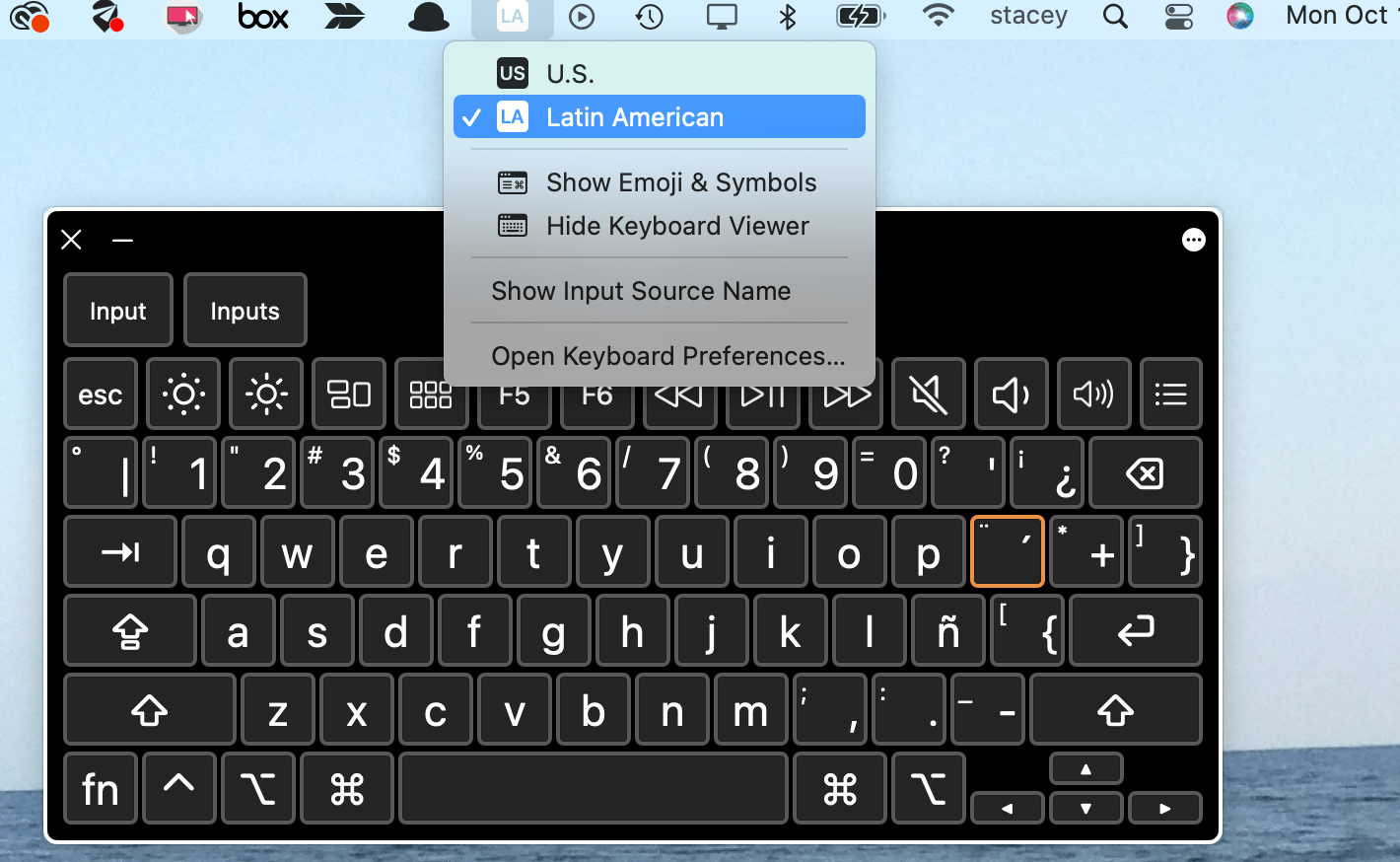
Changing the display language on your Mac allows you to view the operating system and its applications in your preferred language. Here’s how you can do it:
To change the display language, follow these steps:
- Click on the Apple menu in the top-left corner of your screen.
- Select “System Preferences” from the menu.
- Click on “Language & Region” in the System Preferences window.
- Click on the “Language” tab.
- Select your preferred language from the list on the left.
- Click on the “Set as Primary” button.
- Log out and back into your Mac for the changes to take effect.
Note:The list of available languages on your Mac depends on the languages that are installed on your system.
Adding and Removing Preferred Languages
You can also add or remove languages from the list of preferred languages on your Mac. To do this:
- Click on the “+” button at the bottom of the “Preferred Languages” list.
- Select the language you want to add from the list.
- Click on the “Add” button.
To remove a language from the list, simply select it and click on the “-” button.
Additional Language Settings
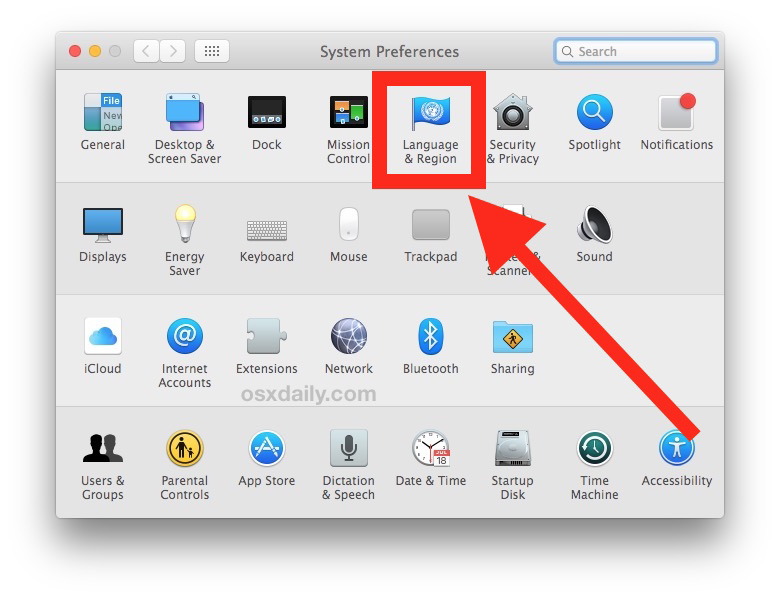
Beyond the primary display language, macOS offers further customization options to refine your language preferences. Explore the “Formats” and “Input Sources” tabs within the “Language & Region” settings to tailor date, time, number formats, and keyboard layouts.
If you’re wondering how to change the language on your Mac, it’s pretty straightforward. Head to System Preferences, then Language & Region. Click the plus sign to add a new language, or drag your preferred language to the top of the list.
By the way, do you know what language they speak in Guatemala? Check this out if you’re curious. Coming back to changing the language on your Mac, once you’ve selected your desired language, click “Apply” and then “Restart” to complete the process.
Formats Tab
The “Formats” tab enables you to specify the desired formats for date, time, and numbers. These settings influence how these elements are displayed throughout the operating system, ensuring consistency with your preferred conventions.
If you’re curious about the language used in Unreal Engine, you can check out this article: what language does unreal engine use . Meanwhile, to change the language on your Mac, go to System Preferences, select “Language & Region,” and click on the “Language” tab.
You can then drag your preferred language to the top of the list.
- Date Format:Choose from various date formats, including short, medium, and long, to display dates according to your preference.
- Time Format:Select the desired time format, either 12-hour or 24-hour, to match your timekeeping preferences.
- Number Format:Specify the separator characters for decimal and thousands, ensuring correct display of numeric values.
Input Sources Tab
The “Input Sources” tab allows you to manage the keyboard layouts available to you. Add, remove, or rearrange input sources to quickly switch between different languages or keyboard configurations.
- Input Sources List:View a list of all installed input sources and their corresponding keyboard layouts.
- Add Input Source:Click the “+” button to add a new input source, selecting from the available options.
- Remove Input Source:Click the “-” button to remove an input source, freeing up space or decluttering the list.
- Rearrange Input Sources:Drag and drop input sources to change their order, ensuring easy access to frequently used layouts.
Troubleshooting Language Changes: How To Change A Language On Mac
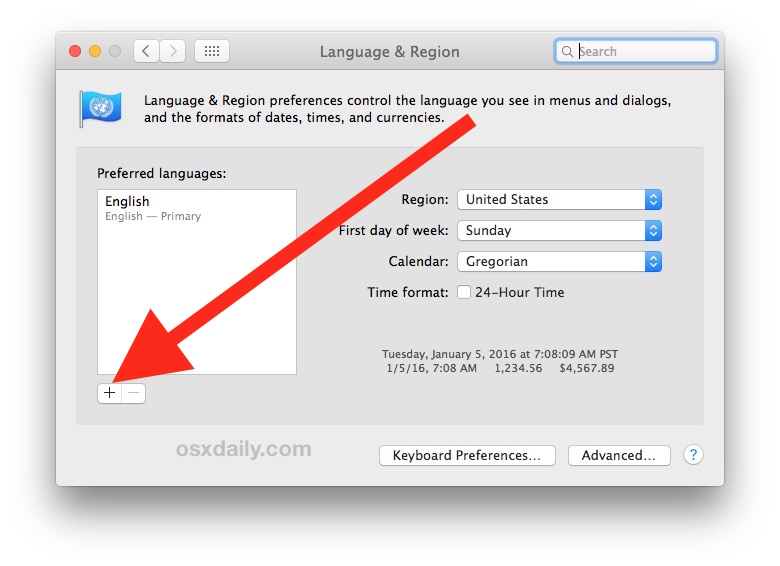
Changing the language on a Mac can occasionally present some challenges. This section will explore common issues and provide solutions to ensure a smooth language-changing experience.
If you encounter any difficulties, the following steps can help you troubleshoot and resolve the problem.
Missing Languages, How to change a language on mac
- Restart your Mac:A simple restart can often resolve issues with missing languages.
- Check Software Updates:Apple regularly releases updates that may include new language packs. Ensure your Mac is up-to-date with the latest software.
- Download Language Packs Manually:Visit the Apple Support website to download and install missing language packs.
Incorrect Formatting
- Verify Language Settings:Double-check that the language you selected in System Preferences is correct and applied to all relevant applications.
- Use Unicode:Ensure that your Mac is set to use Unicode, which supports a wide range of languages and characters.
- Contact Application Developers:If a specific application displays incorrect formatting, reach out to the developer for support.
Advanced Language Management
For advanced users, third-party tools and scripts can provide additional language management capabilities.
- Language Switcher:This tool allows you to quickly switch between multiple languages.
- Automator Scripts:Create custom scripts to automate language-related tasks.
- Terminal Commands:Use Terminal commands to manage language settings and install language packs.
FAQ Section
Can I change the language for specific apps only?
No, changing the display language affects the entire system, including all apps.
What if I don’t see my desired language in the list?
You can download additional language packs from the Apple App Store.
Can I use third-party tools to manage language settings?
Yes, there are various third-party apps and scripts available for advanced language management, such as Language Switcher and Poedit.
