Discover how to change the language in PPT and elevate your presentations to new heights. Whether you’re targeting a global audience or simply want to enhance your slides with a different linguistic flair, this guide will equip you with the knowledge and steps to effortlessly customize your PowerPoint language settings.
From navigating menus to displaying text in the desired language, we’ll delve into the intricacies of language selection and provide practical tips to ensure your presentations resonate with your audience.
Introduction to Language Settings in PPT
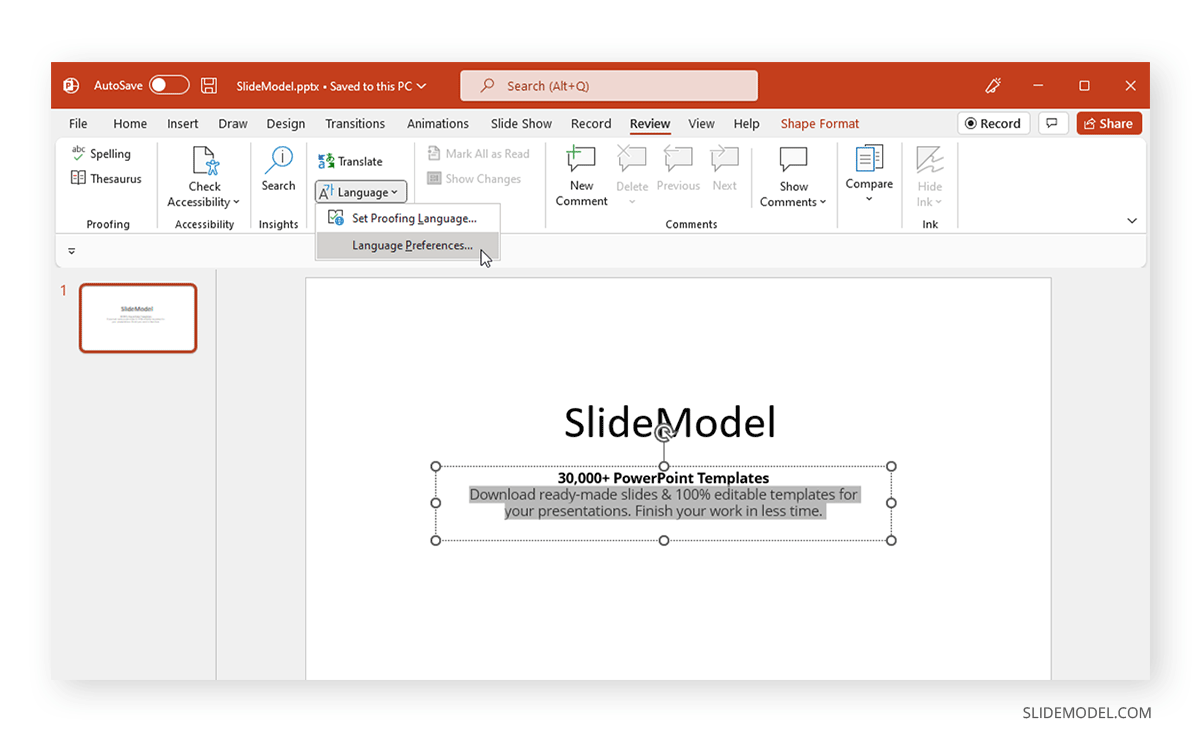
Language settings in PowerPoint presentations play a crucial role in ensuring effective communication and presentation delivery. The language you choose affects various elements of your presentation, including the text, menus, and help options.
By customizing the language settings, you can tailor your presentation to the specific audience and ensure that your message is conveyed clearly and effectively.
Impact of Language on Presentation Elements
- Text:The language setting determines the language of the text displayed in your presentation, including slide titles, body text, and any other text elements.
- Menus and Toolbars:The language setting also affects the language of the menus, toolbars, and other user interface elements in PowerPoint.
- Help Options:The language setting determines the language of the help options available in PowerPoint, including the Help menu and any online help resources.
Methods to Change Language in PPT

Changing the display language in PowerPoint allows you to use the software in your preferred language. This can enhance your productivity and make it easier to collaborate with others who speak different languages.
There are two main methods to change the language in PowerPoint:
Changing the Language within PowerPoint
- Open PowerPoint and go to the “File” menu.
- Select “Options” from the left-hand menu.
- Click on the “Language” tab.
- Under the “Display Language” section, select the desired language from the drop-down menu.
- Click “OK” to save your changes.
Changing the Language through System Settings, How to change the language in ppt
You can also change the language in PowerPoint by modifying your system settings.
- Open the “Control Panel” on your computer.
- Click on “Region and Language.”
- Under the “Languages” tab, click on “Add a language.”
- Select the desired language from the list and click “Add.”
- Once the language is added, you can set it as the default display language by clicking on “Set as default.”
Note:Changing the display language in PowerPoint may affect the compatibility of certain features, such as add-ins and macros. It’s recommended to check with the developers of these features to ensure compatibility before changing the language.
If you’re working on a presentation in a different language and need to change the language in PowerPoint, it’s easy to do. Just go to the “Review” tab and click on “Language.” Then, select the language you want to use.
Speaking of languages, have you ever wondered what language they speak in Bali? It’s Indonesian, but there are also several regional languages spoken on the island. To learn more about the languages of Bali, check out this article: What language do they speak in Bali . After reading that, you can come back here and continue changing the language in PowerPoint.
Customizing Language Options
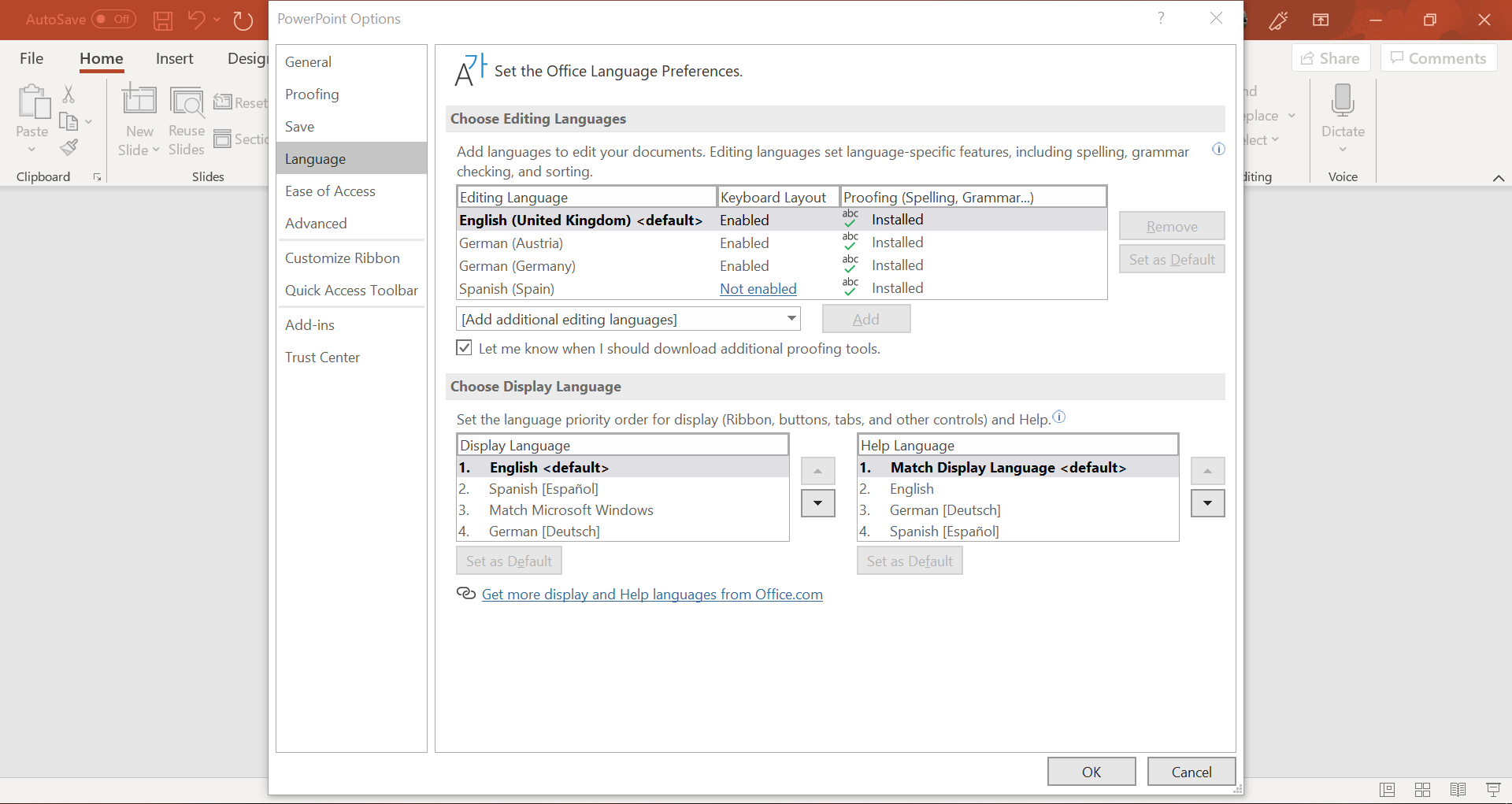
Setting the default language for new presentations ensures consistency and saves time. To do this, go to “File” > “Options” > “Language” and select the desired default language.Managing multiple languages within a single presentation is essential for multilingual audiences. You can insert a text box with the desired language and use the “Translate” feature to convert it to the target language.
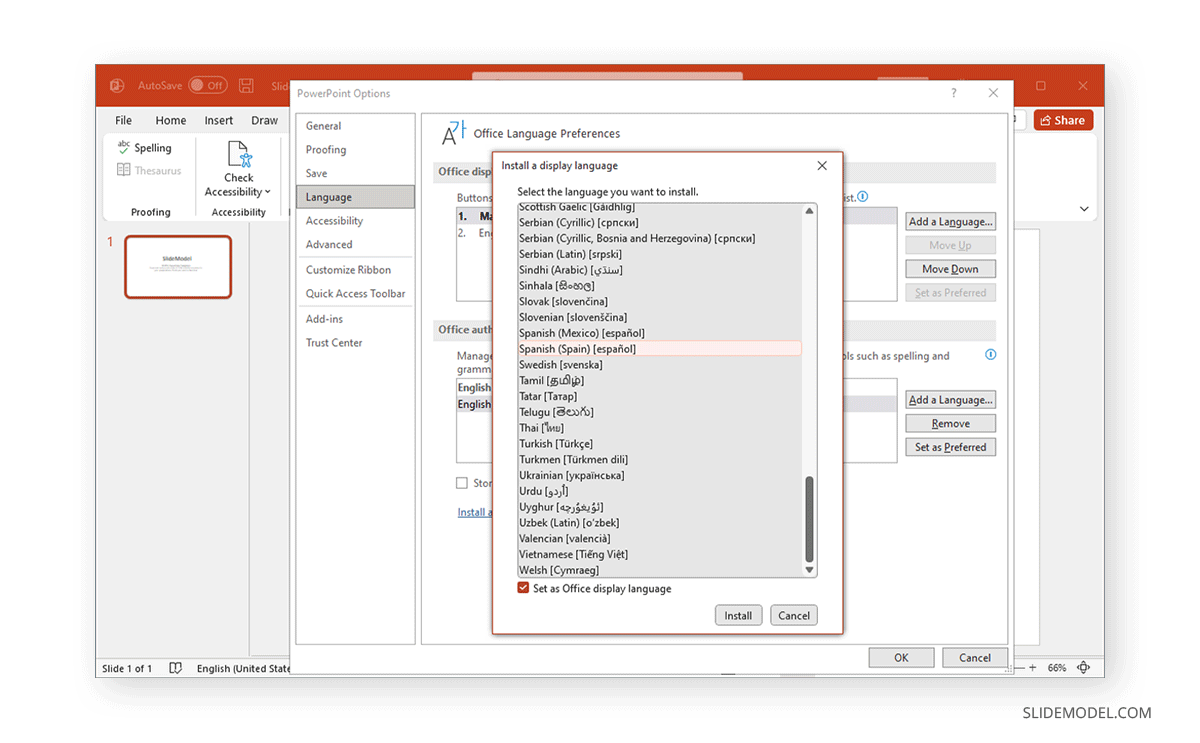
Alternatively, you can use the “Review” > “Language” tab to set different languages for different sections of the presentation.Language packs provide additional language support for specific languages. To install a language pack, go to “File” > “Options” > “Language” and click on “Add a Language.”
Select the desired language and click “Install.”
To change the language in PowerPoint, go to the “Review” tab and click on “Language.” From there, you can select the language you want to use. If you’re wondering how many years of foreign language are required for college, this article provides some insights.
Once you’ve changed the language in PowerPoint, remember to save your presentation.
Best Practices for Language Selection: How To Change The Language In Ppt
Selecting the appropriate language for a presentation is crucial to ensure effective communication. Consider the following factors:
- Audience Demographics:Determine the primary language spoken by your audience. If there are multiple language groups, consider using a multilingual presentation or providing translations.
- Presentation Purpose:The language should align with the intended purpose of the presentation. For technical presentations, formal language may be appropriate, while for more informal settings, a conversational tone can be effective.
- Internationalization:If your presentation will be shared with an international audience, consider using a language that is widely understood, such as English or Spanish.
Examples of Effective Language Choices
* For a technical presentation to a global audience, use clear and concise English with minimal jargon.
- For a sales pitch to a specific target market, use the language that is most familiar to your potential customers.
- For a presentation to a multicultural audience, consider using a multilingual approach with slides in multiple languages or providing simultaneous translation.
Troubleshooting Language Issues
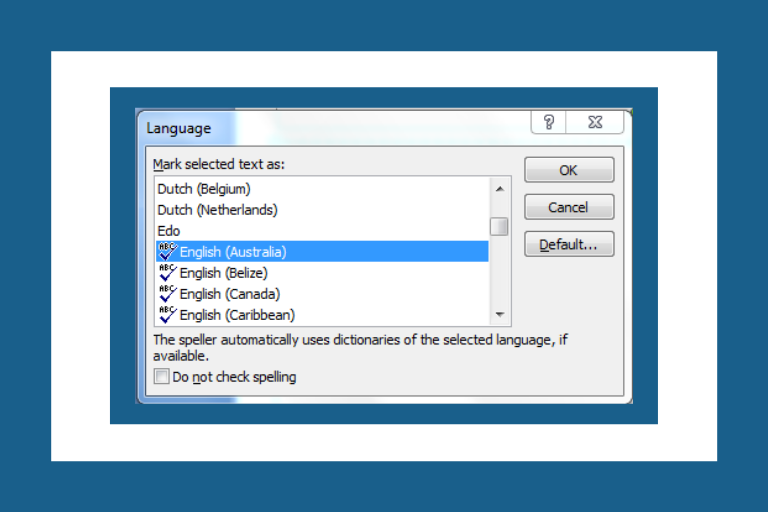
Navigating language-related issues in PowerPoint can be effortless with the right approach. If you encounter missing or incorrect language options, here’s a guide to resolve them and restore your language settings.
If you face any of these problems, follow these steps to troubleshoot and resolve them:
Missing Language Options
- Check if the desired language is installed on your system. If not, install it from the “Control Panel” or “Settings” on your computer.
- Ensure that the language is enabled in PowerPoint’s “Language Preferences” settings. Go to “File” > “Options” > “Language” to verify and enable the language.
Incorrect Language Options
- Verify that the correct language is selected in PowerPoint’s “Language Preferences” settings. If not, change it to the desired language.
- Check if any language-related add-ins or macros are installed. If found, disable or remove them to resolve conflicts.
Restoring Language Settings
- To restore language settings to default, go to “File” > “Options” > “Language” and click on the “Reset” button.
- If you want to restore to a previous language configuration, you can do so by selecting the desired language from the “Previous Languages” list in the “Language Preferences” settings.
General Inquiries
Can I change the language of only specific elements in my presentation?
Yes, you can change the language of individual text boxes, shapes, or slides within your presentation. Select the element, go to the ‘Review’ tab, and use the ‘Language’ dropdown to choose the desired language.
What if my desired language is not available in the PPT language options?
You can install language packs from the Microsoft website to add additional languages to PowerPoint. Once installed, the new languages will appear in the language selection options.
How do I ensure my presentation is accessible to audiences with different language preferences?
Consider using a combination of visuals, icons, and universal symbols to convey key messages. Additionally, provide closed captions or transcripts in multiple languages to enhance accessibility.
