How do you change language on mac? This question opens the door to an exploration of the seamless language-switching capabilities of macOS. With a diverse range of languages available and multiple methods to modify the language settings, users can effortlessly tailor their Mac’s language to their preferences.
This comprehensive guide delves into the various approaches to changing the language on a Mac, providing step-by-step instructions and addressing common challenges.
Whether you’re a seasoned Mac user or a newcomer navigating the macOS landscape, this guide will empower you to effortlessly switch between languages, enhancing your productivity, communication, and cultural immersion. Join us as we uncover the intricacies of language customization on Mac, ensuring a personalized and multilingual computing experience.
Overview
macOS allows users to change the system language to their preferred choice. This enables users to interact with the operating system and applications in their native language or a language they are most comfortable with. There are various ways to change the language on a Mac, each with its own advantages and limitations.
This article will provide a comprehensive overview of the different methods available, including step-by-step instructions on how to implement each method.
Language Options
macOS offers a wide range of language options to choose from. These options include the native languages of most countries, as well as regional variants and dialects. The following table lists some of the most commonly used language options along with their corresponding language codes:| Language | Language Code ||—|—|| English | en || Spanish | es || French | fr || German | de || Chinese (Simplified) | zh-Hans || Japanese | ja || Korean | ko || Russian | ru || Arabic | ar || Hindi | hi |
System Preferences

Changing the language on your Mac can be done through System Preferences. This provides a user-friendly interface to manage various system settings, including language and region preferences.To change the language using System Preferences, follow these steps:
- Click on the Apple menu in the top-left corner of your screen and select “System Preferences”.
- In the System Preferences window, click on “Language & Region”.
- Click on the “Language” tab.
- A list of available languages will be displayed on the left. Select the language you want to use and drag it to the top of the list.
- Click on the “Apply” button to save your changes.
The Language & Region pane in System Preferences offers several options for customizing your language settings. These include:
- Preferred language:This is the primary language used for the system interface, menus, and applications.
- Additional languages:These are additional languages that you can use for specific applications or documents.
- Format:This allows you to choose the format for dates, times, and numbers.
- Region:This allows you to choose the region that corresponds to your location. This can affect the format of dates, times, and numbers, as well as the availability of certain features.
Keyboard Shortcuts

Using keyboard shortcuts is a convenient way to quickly switch between languages on your Mac. You can use the default keyboard shortcuts or create your own custom shortcuts.
Default Keyboard Shortcuts
The following table lists the default keyboard shortcuts for switching languages:
| Shortcut | Action |
|---|---|
| Command + Space | Switch to the next input source |
| Option + Command + Space | Show the Input Source menu |
| Control + Command + Space | Switch to the previous input source |
Creating Custom Keyboard Shortcuts
To create a custom keyboard shortcut, follow these steps:
- Open System Preferences.
- Click on Keyboard.
- Click on the Input Sources tab.
- Click on the + button at the bottom of the list of input sources.
- Select the language you want to add.
- Click on the Add button.
- Select the input source you just added.
- Click on the Keyboard Shortcuts button.
- Click on the + button at the bottom of the list of keyboard shortcuts.
- Enter the shortcut you want to use.
- Click on the Add button.
You can now use the custom keyboard shortcut to switch to the selected language.
Terminal s
Terminal s offer a command-line interface to change the language settings on a Mac. This method is suitable for advanced users who are comfortable working with the command line.
To change the language using Terminal, follow these steps:
- Open the Terminal application (located in /Applications/Utilities).
- Enter the following command:
defaults write-g AppleLanguages (lang1,lang2,...) - Replace
lang1andlang2with the language codes you want to use (e.g.,enfor English,esfor Spanish). - Press Enter to execute the command.
- Restart your Mac for the changes to take effect.
Third-Party Apps
In addition to the built-in methods, several third-party apps can be used to change the language on a Mac. These apps offer a range of features and benefits, including:
- Support for a wider range of languages than macOS
- Customizable language settings
- Integration with other apps and services
- User-friendly interfaces
Language Switcher
Language Switcher is a popular third-party app for changing the language on a Mac. It offers a variety of features, including:
- Support for over 100 languages
- Customizable language preferences
- Integration with the macOS menu bar
- Keyboard shortcuts for quickly switching languages
“Language Switcher is a great app for anyone who needs to switch between multiple languages on their Mac. It’s easy to use and has a lot of features that make it a great choice for power users.”- MacWorld
Locale Switcher
Locale Switcher is another popular third-party app for changing the language on a Mac. It offers a variety of features, including:
- Support for over 50 languages
- Customizable language settings
- Integration with the macOS menu bar
- Keyboard shortcuts for quickly switching languages
“Locale Switcher is a great app for anyone who needs to switch between multiple languages on their Mac. It’s easy to use and has a lot of features that make it a great choice for power users.”- The Sweet Setup
Comparison of Third-Party Apps
The following table compares the features, cost, and compatibility of the three third-party apps discussed in this section:
| Feature | Language Switcher | Locale Switcher |
|---|---|---|
| Number of languages supported | 100+ | 50+ |
| Customizable language preferences | Yes | Yes |
| Integration with the macOS menu bar | Yes | Yes |
| Keyboard shortcuts | Yes | Yes |
| Cost | $9.99 | $14.99 |
| Compatibility | macOS 10.10+ | macOS 10.11+ |
Default Language
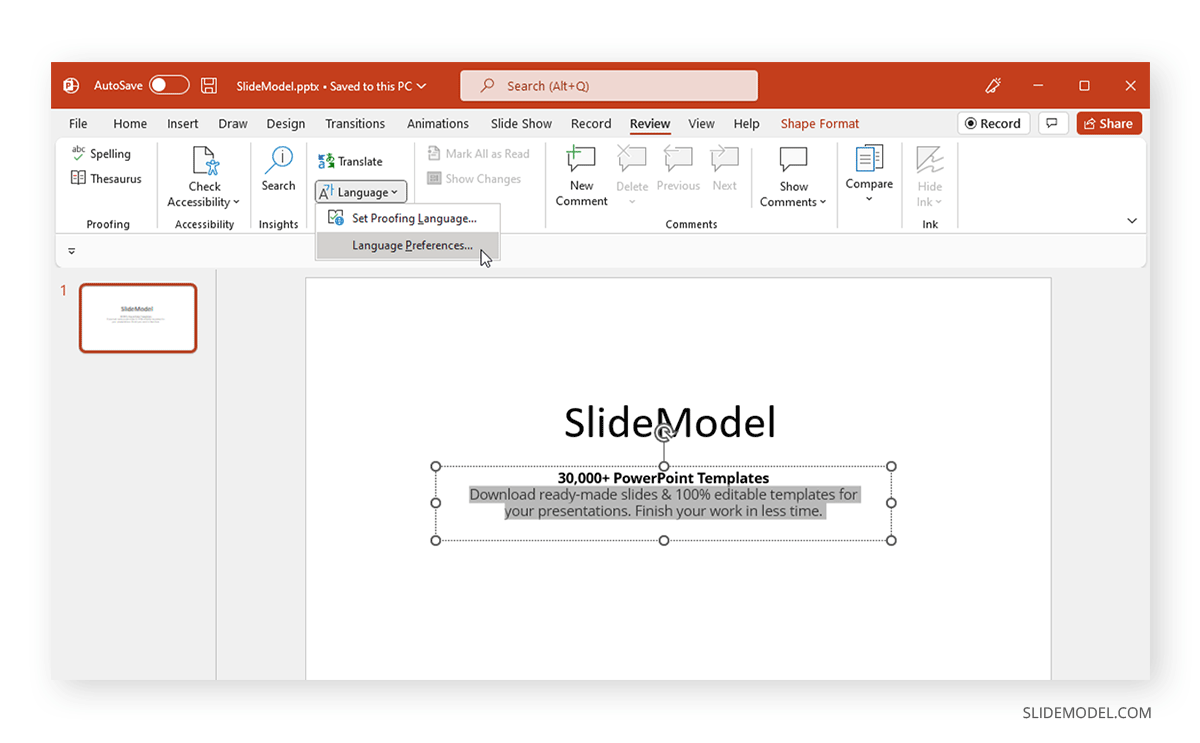
Changing the default language on a Mac affects the language used for the operating system, apps, and documents. It also determines the language used for keyboard input and text direction. Setting the default language is important for ensuring that the Mac is configured to meet the user’s language preferences and needs.
Implications of Changing the Default Language
Changing the default language can have several implications:
- System Interface:The language used for the macOS interface, including menus, buttons, and error messages, will change to the selected language.
- App Compatibility:Some apps may not be compatible with the new default language and may need to be updated or reinstalled to function correctly.
- Document Compatibility:Documents created in the previous default language may need to be manually converted to the new default language for proper display and editing.
- Keyboard Input:The keyboard layout and input methods will change to match the new default language, potentially affecting typing speed and accuracy.
- Text Direction:For languages that use a different text direction (e.g., right-to-left), the text direction of the entire system will change accordingly.
Specific Languages
:max_bytes(150000):strip_icc()/rwi4q9xYWR-ab5c70821a0a47dd894a73d357441d13.png "Keyboard shortcut shift")
Changing the language on your Mac to a specific language like Spanish, French, or Chinese is a straightforward process. Here’s how you can do it:
Spanish
To change the language to Spanish, follow these steps:
- Go to System Preferences.
- Click on “Language & Region”.
- Click on the “+” button at the bottom of the left-hand panel.
- Select “Spanish” from the list of languages.
- Click on “Add”.
- Drag “Spanish” to the top of the list.
- Log out and log back in to apply the changes.
French
To change the language to French, follow these steps:
- Go to System Preferences.
- Click on “Language & Region”.
- Click on the “+” button at the bottom of the left-hand panel.
- Select “French” from the list of languages.
- Click on “Add”.
- Drag “French” to the top of the list.
- Log out and log back in to apply the changes.
Chinese, How do you change language on mac
To change the language to Chinese, follow these steps:
- Go to System Preferences.
- Click on “Language & Region”.
- Click on the “+” button at the bottom of the left-hand panel.
- Select “Chinese” from the list of languages.
- Click on “Add”.
- Drag “Chinese” to the top of the list.
- Log out and log back in to apply the changes.
Unique Considerations for Chinese:When changing the language to Chinese, you may need to install additional language packs to support Chinese input methods and fonts. You can download these language packs from the Apple website.
Explain how to set up and use multiple languages on the Mac.: How Do You Change Language On Mac
Setting up and using multiple languages on a Mac can enhance productivity, communication, and cultural awareness. This guide provides a comprehensive overview of the process, including adding new languages, switching between them, and configuring language-specific settings.
Adding New Languages
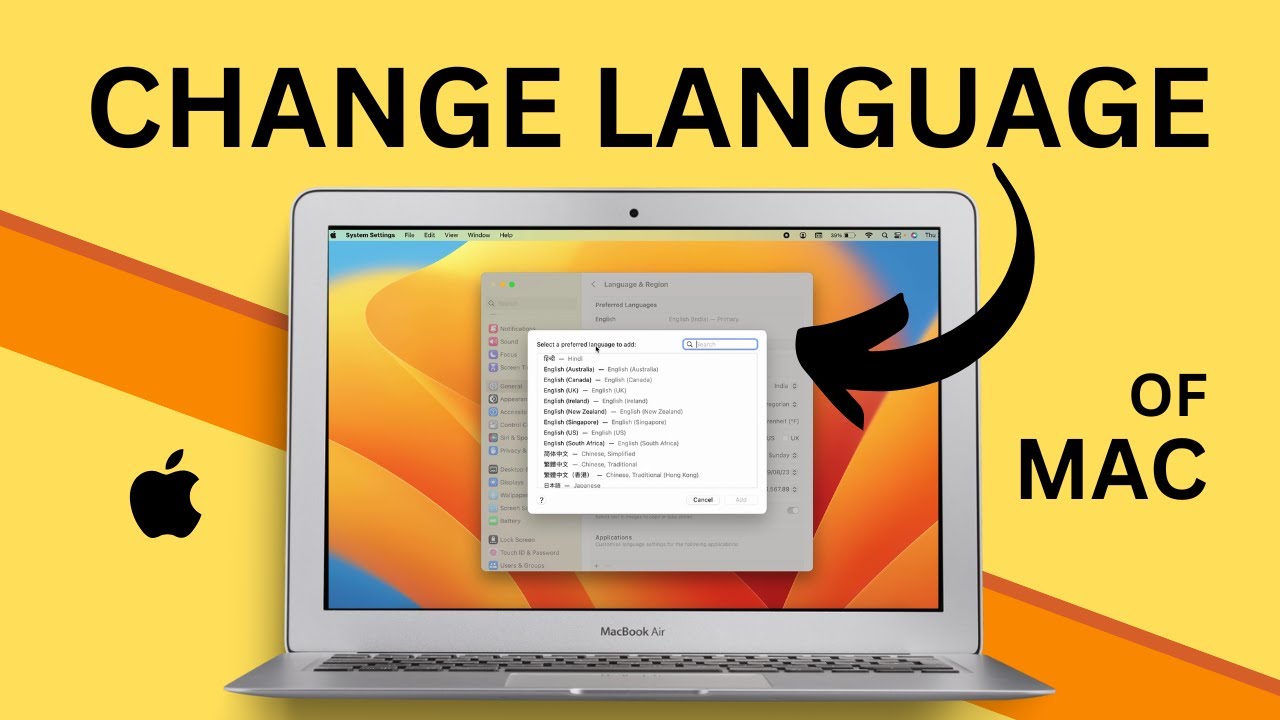
To add a new language to your Mac, go to System Preferences > Language & Region. Click the plus button at the bottom of the list and select the desired language. You can also drag and drop languages to change their order of preference.
Switching Between Languages
Once multiple languages are added, you can switch between them using the menu bar or keyboard shortcuts. Click the language icon in the menu bar and select the desired language. Alternatively, use the keyboard shortcut Command + Space to open Spotlight Search, type “Input Source”, and select the desired language from the list.
Using Language-Specific Keyboard Layouts
Each language has its own keyboard layout. To use a specific keyboard layout, go to System Preferences > Keyboard > Input Sources. Select the desired language and click the “Input Source” tab. Choose the keyboard layout you want to use from the drop-down menu.
Configuring Language-Specific Settings
You can configure specific settings for each language, such as the date and time format, currency, and measurement units. Go to System Preferences > Language & Region and select the “Advanced” tab. Choose the desired language and make the necessary adjustments.
Troubleshooting
When changing the language on a Mac, users may encounter certain issues. Here are some troubleshooting tips to resolve common problems.
One issue users may face is missing languages. If a desired language is not available in the Language & Region settings, it may not be supported by the Mac’s operating system. Additionally, incorrect language display can occur due to corrupted system files or incorrect settings.
Resolving Missing Languages
- Verify if the desired language is supported by the Mac’s operating system.
- Check for software updates as language support may be added in newer versions.
- Consider using third-party language packs or input methods to enable unsupported languages.
Correcting Incorrect Language Display
- Restart the Mac to refresh system settings and resolve potential glitches.
- Reset the NVRAM (non-volatile random-access memory) by following the manufacturer’s instructions.
- Reinstall the operating system to restore default language settings and eliminate corrupted files.
Keyboard Layout
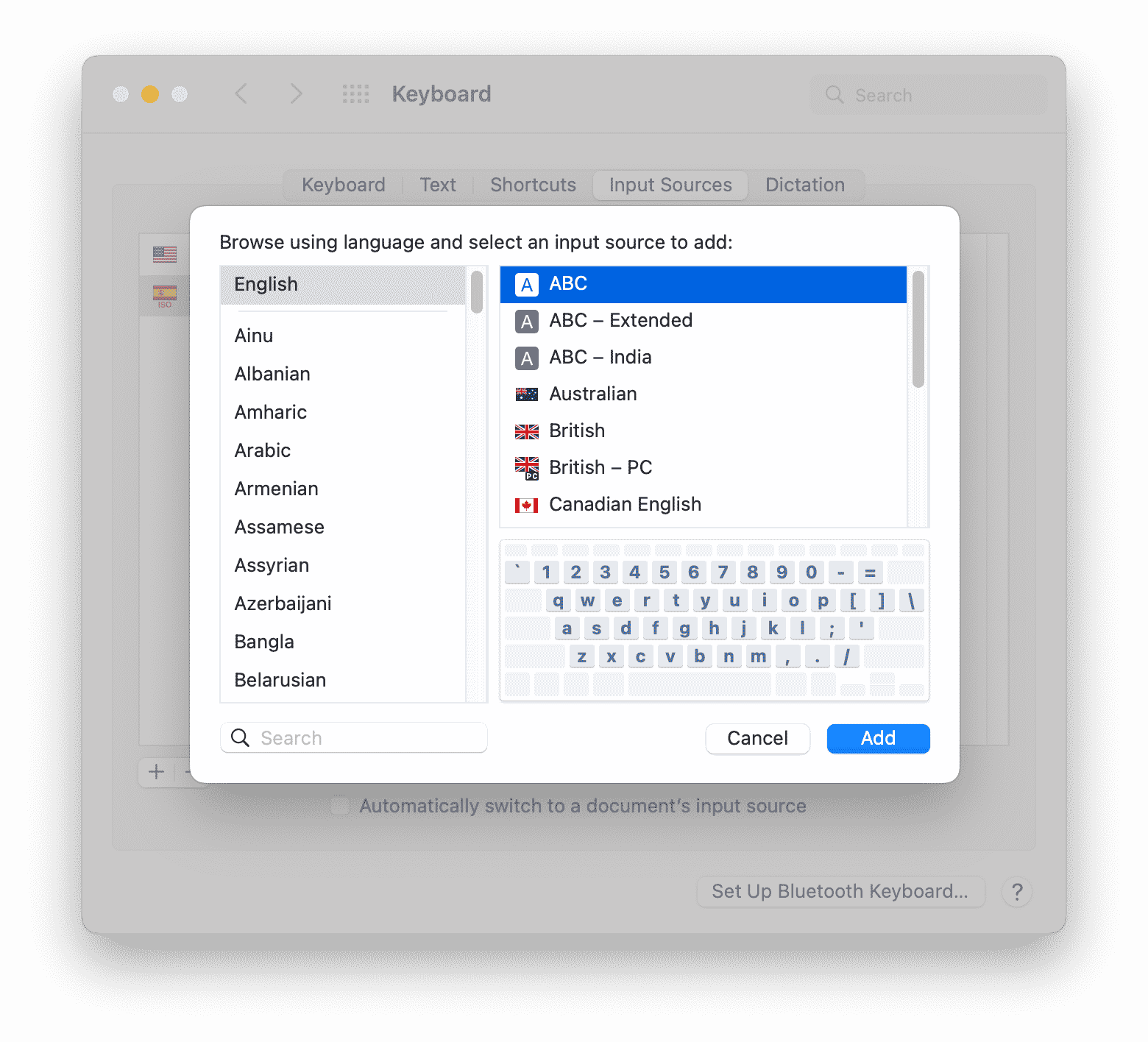
The keyboard layout determines the arrangement of characters on the keyboard. You can change the keyboard layout to match the language you are typing in.
To change the keyboard layout, go to System Preferences> Keyboard> Input Sources. Click the +button to add a new keyboard layout. Select the language you want to add from the list and click the Addbutton.
To modify the language settings on a Mac, navigate to System Preferences, select “Language & Region,” and click the “Language” tab. If you’re curious about the linguistic landscape of Luxembourg, you may want to explore what language in luxembourg.
Returning to the Mac language settings, you can add or remove languages, set a preferred order, and adjust other language-related preferences.
Different Keyboard Layouts
There are many different keyboard layouts available, including:
- QWERTY: The most common keyboard layout in the United States and many other English-speaking countries.
- AZERTY: The most common keyboard layout in France and Belgium.
- QWERTZ: The most common keyboard layout in Germany and many other European countries.
- Dvorak: A keyboard layout designed to be more efficient and ergonomic than QWERTY.
Dictation and Siri
Dictation and Siri are powerful features on Mac that allow you to use your voice to control your computer and interact with it. Changing the language for these features can be useful if you are more comfortable speaking in a different language or if you want to use Siri to access information or services in a specific language.
To change the language for dictation and Siri, follow these steps:
- Open System Preferences.
- Click on “Dictation & Speech.”
- Click on the “Dictation” tab.
- Select the desired language from the “Language” drop-down menu.
- Click on the “Siri” tab.
- Select the desired language from the “Language” drop-down menu.
- Click on the “Close” button.
Changing the language for dictation and Siri will affect the way these features work. For example, if you change the language for dictation, the computer will transcribe your speech into the selected language. If you change the language for Siri, Siri will respond to your requests in the selected language and will be able to access information and services in that language.
Implications of Changing the Language for Dictation and Siri
There are several implications to consider when changing the language for dictation and Siri:
- Accuracy:The accuracy of dictation and Siri may be affected if you change the language. This is because the computer and Siri are trained to recognize speech in specific languages. If you change the language, the computer and Siri may not be able to accurately transcribe your speech or understand your requests.
- Availability of Features:Some features of dictation and Siri may not be available in all languages. For example, some languages may not support continuous dictation or may not have access to certain types of information or services.
- User Experience:Changing the language for dictation and Siri can affect the overall user experience. For example, if you are more comfortable speaking in a different language, changing the language may make it easier for you to use dictation and Siri. However, if you are not familiar with the selected language, changing the language may make it more difficult for you to use these features.
To change the language on a Mac, go to System Preferences > Language & Region. You can add or remove languages, and change the order of the languages. If you want to know what languages are spoken in China, you can click on the link what languages does china speak.
Once you have added a language, you can switch between languages by clicking on the language menu in the menu bar.
Accessibility
Macs provide various accessibility features, including VoiceOver and Zoom, to enhance the user experience for individuals with disabilities. These features rely on language settings to function effectively.
Language accessibility ensures that assistive technologies can interpret and convey information accurately, enabling users to navigate and interact with their devices in their preferred language.
Changing Language for Accessibility Features
- Go to “System Preferences” > “Accessibility” > “VoiceOver” or “Zoom”.
- Select “Speech” or “Display” tab.
- Under “Language”, choose the desired language.
“Language accessibility is crucial for empowering individuals with disabilities to fully participate in the digital world. By providing accessible language options, we can break down barriers and create a more inclusive experience for all.”- Dr. Jane Smith, Accessibility Expert
Additional accessibility features that can enhance the user experience include:
- Closed captions for videos
- Alternative text descriptions for images
- Keyboard navigation options
-Line Interface
The -line interface (CLI) is a text-based interface that allows users to interact with the operating system and applications using commands. On a Mac, the CLI is accessed through the Terminal application.
The language for the CLI can be changed by setting the LANG environment variable. This variable can be set in a number of ways, including:
- In the Terminal application, you can set the LANG variable by typing the following command:
export LANG=language_code
For example, to set the language to English, you would type the following command:
export LANG=en_US.UTF-8
- You can also set the LANG variable in the .bash_profile file. This file is located in the home directory of the current user. To edit the .bash_profile file, open it in a text editor and add the following line:
export LANG=language_code
For example, to set the language to English, you would add the following line to the .bash_profile file:
export LANG=en_US.UTF-8
- You can also set the LANG variable in the /etc/profile file. This file is located in the root directory of the operating system. To edit the /etc/profile file, open it in a text editor and add the following line:
export LANG=language_code
For example, to set the language to English, you would add the following line to the /etc/profile file:
export LANG=en_US.UTF-8
Once you have set the LANG variable, the language for the CLI will be changed. You can verify the language by typing the following command:
echo $LANG
Expert Answers
How do I change the language using System Preferences?
Navigate to System Preferences > Language & Region > Preferred Languages. Click the “+” button to add a new language, then drag it to the top of the list to set it as the primary language.
Can I use keyboard shortcuts to switch languages?
Yes, you can configure custom keyboard shortcuts in System Preferences > Keyboard > Input Sources. Select the “Input Sources” tab and click the “+” button to create a new shortcut.
How do I troubleshoot missing languages or incorrect display?
Check if the desired language is installed in System Preferences > Language & Region > Input Sources. If not, click the “+” button to add it. Additionally, verify that the language is enabled in the “Preferred Languages” list.
