How do I change my language on my phone? This question plagues many users who find themselves lost in a sea of unfamiliar characters and incomprehensible menus. This guide will navigate you through the intricacies of changing your phone’s language, empowering you to unlock the full potential of your device.
From accessing device settings to exploring regional options and customizing keyboard preferences, we’ll delve into every aspect of language modification on mobile devices. Whether you’re a seasoned tech enthusiast or a novice user, this comprehensive guide will provide you with the knowledge and confidence to master your phone’s language settings.
Device Settings
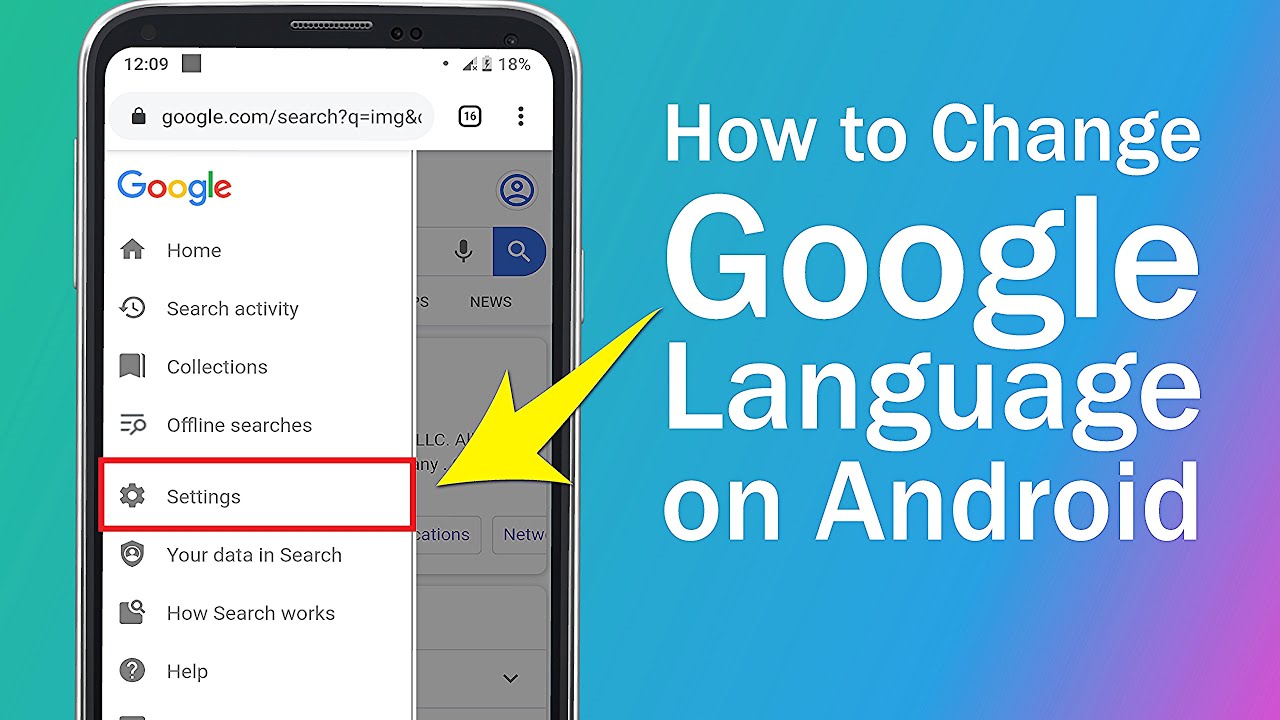
To modify the language settings on your mobile device, you must navigate to the device settings menu. The specific steps for accessing this menu vary depending on the operating system of your device.
In most cases, you can access the device settings menu by following these steps:
- On Android devices: Open the Settings app from the home screen or app drawer.
- On iOS devices: Open the Settings app from the home screen.
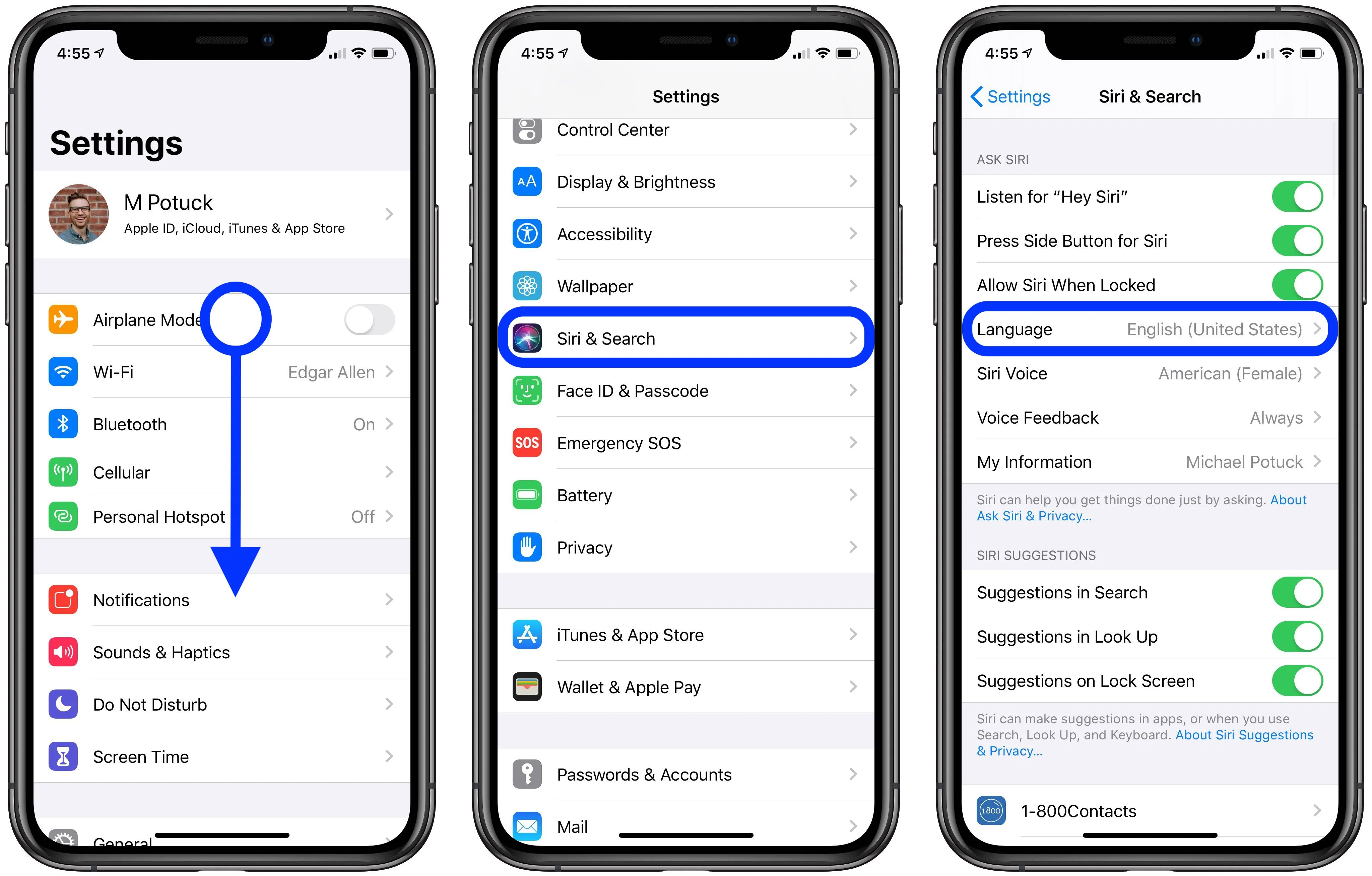
Once you have accessed the device settings menu, you can locate the language settings by following these steps:
- On Android devices: Scroll down and tap on the “System” option.
- On iOS devices: Scroll down and tap on the “General” option.
Within the “System” or “General” settings, you will find an option related to language settings. This option may be labeled as “Language & input” or “Language and Region”.
Language Options
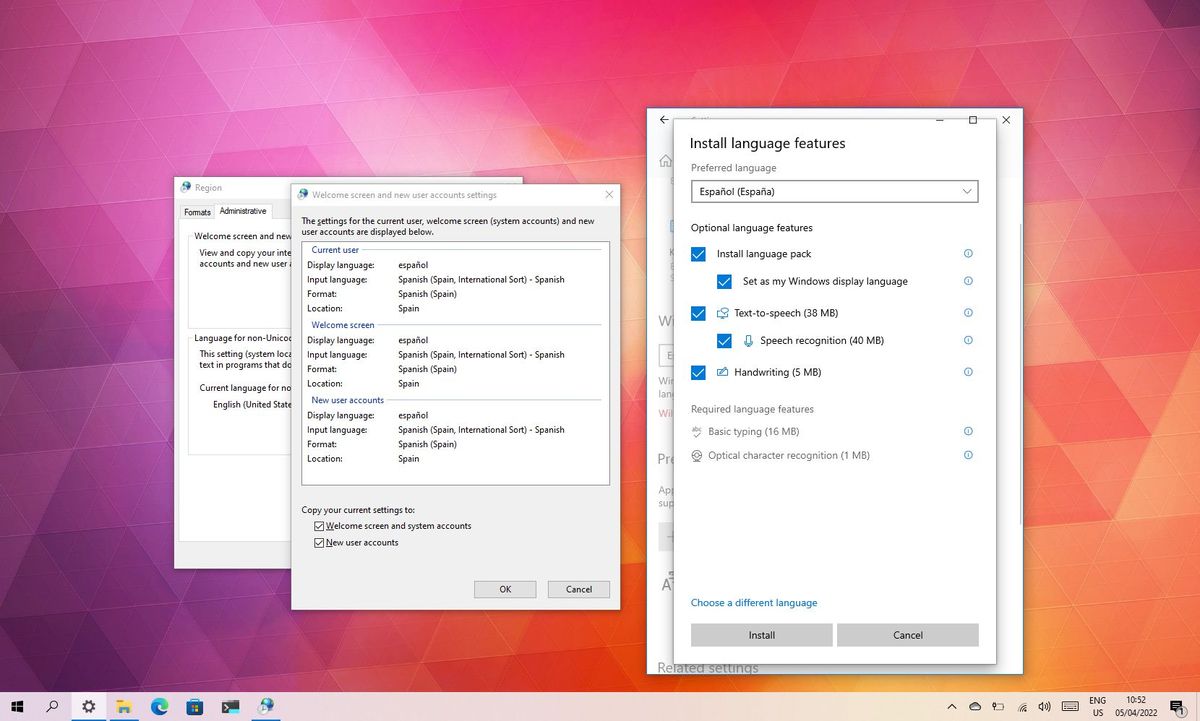
Mobile devices typically offer a range of language options to cater to users from different regions and linguistic backgrounds. These options include commonly spoken languages such as English, Spanish, French, German, and Chinese.To change the language settings on your mobile device, navigate to the Device Settings menu.
Under the “Language and Input” or “Languages” section, you will find a list of available languages. Simply select your desired language from the list, and the device will automatically update the display language and input methods accordingly.
Available Languages and Language Codes
The following table lists some of the commonly available languages on mobile devices, along with their corresponding language codes:| Language | Language Code ||—|—|| English | en || Spanish | es || French | fr || German | de || Chinese | zh |
Programmatic Language Change
For developers, it is possible to programmatically change the language settings on a mobile device using the following code block:“`// Change the language to SpanishSettings.System.putString(Settings.System.LOCALE, “es”);“`
Importance of Language Localization
Language localization is essential for mobile apps to reach a global audience. By translating the app’s content into multiple languages, you can make your app more accessible and user-friendly for people from all over the world. This can significantly increase the reach and engagement of your app.
Regional Settings
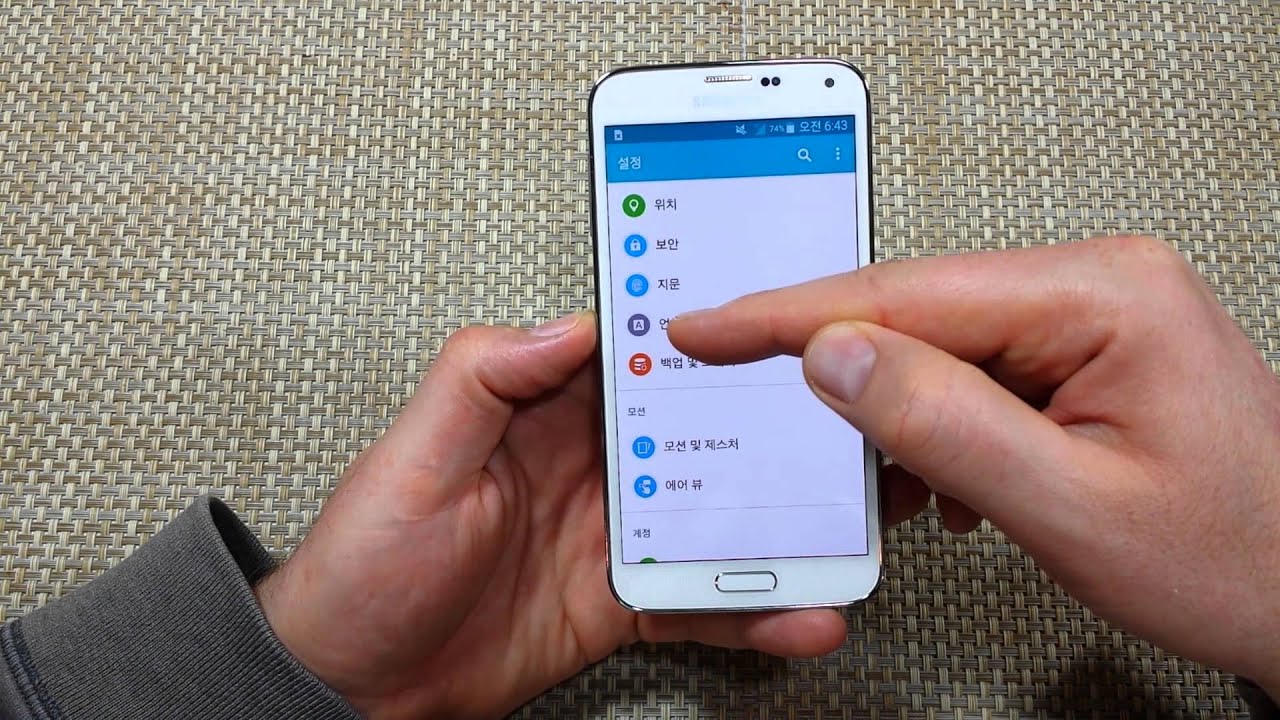
Regional settings play a crucial role in determining the language preferences of a device. They define the geographical region and cultural context associated with the device, which can influence the language options available. By adjusting the regional settings, users can align their device’s language preferences with their desired language.
Adjusting Regional Settings
To modify the regional settings on a device, users typically navigate to the “Settings” menu and select the “Regional Settings” or “Language & Region” option. Within these settings, users can specify the country or region they are located in, as well as the preferred language for the device’s interface, applications, and content.By selecting the desired region and language, users can ensure that their device displays the correct language for their location and preferences.
For example, if a user is located in the United States and prefers to use English, they would select “United States” as the region and “English (United States)” as the language.
Keyboard Settings: How Do I Change My Language On My Phone
Keyboard language settings play a pivotal role in text input on mobile devices, allowing users to type in their preferred languages. Changing the keyboard language can enhance the user experience, particularly for multilingual individuals or those communicating in multiple languages.
The process of changing keyboard language varies across different mobile operating systems. Here are some general guidelines:
iOS
- Go to “Settings” > “General” > “Keyboard” > “Keyboards”.
- Tap “Add New Keyboard” and select the desired language.
- To switch between keyboards, tap the globe icon on the keyboard.
Android
- Open the “Settings” app and navigate to “System” > “Languages & Input” > “Virtual Keyboard” > “Manage Keyboards”.
- Enable the desired keyboard language by toggling the switch.
- To change the keyboard language, tap and hold the spacebar and select the preferred language from the list.
App-Specific Settings
:max_bytes(150000):strip_icc()/ChangeAndroidLanguage1-3-198ea43d34924870860f60ccc4002c82.jpg "Language change google english android")
Certain applications possess their own distinct language configurations, independent of the device’s overall language settings. To modify the language preferences within these individual apps, specific steps must be taken.
To facilitate this process, the following table provides a comprehensive list of popular applications along with the corresponding locations of their language setting options. Screenshots or GIFs have been included to provide visual guidance for changing language preferences within these specific applications.
Accessing Language Settings in Individual Apps
| App | Language Setting Location |
|---|---|
| Settings > Chats > App Language | |
| Settings > Account > Language | |
| Settings > Language and Region | |
| Settings and Privacy > Display and Sound > Language | |
| YouTube | Settings > General > Language |
Third-Party Apps

Third-party apps can assist with language translation on mobile devices. These apps offer various features and capabilities, making it convenient to translate text, documents, and even speech.
Popular Translation Apps
Some popular translation apps include:
Google Translate
Provides translation for over 100 languages, including text, voice, and image translation.
Microsoft Translator
Supports over 60 languages, offering text, speech, and image translation, along with offline translation capabilities.
iTranslate
Offers translation for over 100 languages, featuring text, voice, and camera translation, as well as offline translation and dictionary functions.
Troubleshooting
When changing language settings on a phone, various issues can arise. Understanding these common problems and their solutions can ensure a smooth and successful language modification process.
Troubleshooting involves identifying potential issues and providing practical solutions to resolve them. By addressing these challenges, users can effectively change their phone’s language settings and enjoy a customized user experience.
Common Issues
- Language Not Available:The desired language may not be supported by the phone’s operating system or the specific app.
- Partial Language Change:Only certain aspects of the phone’s interface or specific apps may change language, while others remain in the original language.
- App-Specific Language Issues:Some apps may not support language changes, or their language settings may be independent of the phone’s system language.
- Keyboard Language Mismatch:The keyboard language may not match the phone’s display language, causing typing difficulties.
- Regional Settings Conflict:Regional settings, such as date and time formats, may not align with the chosen language, leading to confusion or incorrect information.
Troubleshooting Tips
- Verify Language Availability:Check if the desired language is supported by the phone’s operating system and the apps you use.
- Check App Settings:Some apps have their own language settings that may need to be adjusted separately from the phone’s system language.
- Restart the Phone:Restarting the phone after changing language settings can resolve any temporary glitches or conflicts.
- Update Apps and OS:Ensure that both the phone’s operating system and the apps are up to date, as updates may include language support improvements.
- Contact App Developers:If an app does not support the desired language, contact the app developers for assistance or to request language support.
System Updates
System updates play a crucial role in maintaining the functionality and security of your device. These updates often include language-related enhancements, ensuring that the latest language options are available to users.
To ensure that your language preferences are maintained after a system update, it’s essential to check for and install updates regularly. Here’s a step-by-step guide to help you do this:
Checking for Updates
- Go to your device’s Settings menu.
- Locate the “System” or “Software Update” option.
- Tap on “Check for Updates” or “Download and Install.” If an update is available, follow the on-screen instructions to download and install it.
Multiple Language Support
Mobile devices have become indispensable tools for communication, information access, and entertainment. To cater to the diverse linguistic needs of users worldwide, these devices offer robust support for multiple languages, enabling users to seamlessly interact with their devices and access content in their preferred languages.
The capabilities of mobile devices for multiple language support include:
- Automatic Language Detection:Mobile devices can automatically detect the user’s language based on various factors, such as the device’s location, network settings, and previously used languages.
- Manual Language Selection:Users can manually select their preferred language from a list of available languages supported by the device’s operating system.
- Language-Specific Keyboards and Input Methods:Mobile devices provide language-specific keyboards and input methods that allow users to type and input text in their native languages.
Enabling and Managing Multiple Language Settings
To enable and manage multiple language settings on mobile devices, users can typically follow these steps:
- Adding and Removing Languages:Go to the device’s “Settings” or “Language & Input” section and select the “Languages” or “Language & Region” option. Here, users can add new languages or remove languages that are no longer needed.
- Setting Default Languages:Users can set their preferred default language, which will be used for the device’s interface, apps, and content.
- Configuring Language-Specific Preferences:Users can configure language-specific preferences, such as keyboard layout, date and time format, and number formatting, for each added language.
Benefits of Using Multiple Languages on Mobile Devices
There are numerous benefits to using multiple languages on mobile devices:
- Improved Accessibility:Multiple language support ensures that users with different language preferences can access and use mobile devices comfortably.
- Enhanced Communication and Collaboration:In international settings, multiple language support facilitates effective communication and collaboration among users who speak different languages.
- Access to a Wider Range of Content and Applications:Using multiple languages expands the range of content and applications that users can access, as they can explore content in different languages.
Challenges and Limitations
While multiple language support on mobile devices offers significant benefits, it also presents some challenges and limitations:
- Increased Storage Requirements:Supporting multiple languages requires additional storage space for language packs, keyboards, and other language-specific data.
- Potential for Confusion or Errors:If multiple languages are not managed properly, it can lead to confusion or errors when users interact with the device or its content.
- Limited Support for Certain Languages or Language-Specific Features:Not all languages or language-specific features may be supported on all mobile devices or operating systems.
Accessibility Options
For users with language barriers, various accessibility features are available to enhance their comprehension and interaction with digital content.
Language Translation
This feature allows users to translate text into their preferred language, making it easier for them to understand the content of websites, documents, and other digital materials.
Text-to-Speech
This feature reads text aloud, enabling users to listen to the content instead of reading it. This is particularly helpful for users with dyslexia or other reading difficulties.
Closed Captions
Closed captions provide text captions for videos, making them accessible to deaf and hard of hearing users. This feature allows users to follow the dialogue and understand the content of the video.
Alternative Text
Alternative text provides text descriptions of images, making them accessible to visually impaired users. This feature allows users to understand the content of images and graphics.
| Feature | Benefit |
|---|---|
| Language translation | Allows users to translate text into their preferred language. |
| Text-to-speech | Reads text aloud, making it easier for users to understand. |
| Closed captions | Provides text captions for videos, making them accessible to deaf and hard of hearing users. |
| Alternative text | Provides text descriptions of images, making them accessible to visually impaired users. |
These accessibility features have proven invaluable in helping users overcome language barriers. For example, a study by the University of California, Berkeley found that using language translation features significantly improved the comprehension of English-language materials for non-native speakers.
Language Learning
With the proliferation of mobile devices, language learning has become more accessible and convenient than ever before. Mobile devices offer a wide range of language learning apps and resources, making it possible to learn a new language anytime, anywhere.
Advantages of Using Mobile Devices for Language Learning
* Convenience:Mobile devices are always at hand, allowing learners to study whenever they have a spare moment.
Affordability
Many language learning apps are free or low-cost, making them an affordable option for learners.
Interactivity
Mobile apps often include interactive features, such as games and quizzes, which can make learning more engaging and fun.
Personalization
Mobile apps can be tailored to the individual learner’s needs and interests, providing a personalized learning experience.
Immersion
Mobile devices allow learners to access authentic language materials, such as videos, podcasts, and news articles, which can help to immerse them in the target language.
Disadvantages of Using Mobile Devices for Language Learning
* Distractions:Mobile devices can be distracting, making it difficult to focus on learning.
Lack of face-to-face interaction
Mobile devices do not provide the same level of face-to-face interaction as traditional language classes, which can make it difficult to get feedback and practice speaking.
Technical difficulties
Mobile devices can experience technical difficulties, such as internet connectivity issues, which can interrupt learning.
Tips and Strategies for Effective Language Learning Using Mobile Devices
* Set realistic goals:Don’t try to learn too much too quickly. Start with small, achievable goals and gradually increase the difficulty as you progress.
Be consistent
Make a commitment to studying regularly, even for short periods of time.
Use a variety of resources
Don’t rely on just one app or resource. Use a combination of apps, websites, and other materials to keep your learning fresh and engaging.
Immerse yourself in the language
Listen to music, watch movies, and read books in the target language. The more you expose yourself to the language, the faster you will learn.
Find a language partner
Having someone to practice with can help you improve your speaking and listening skills.
Don’t be afraid to make mistakes
Everyone makes mistakes when learning a new language. The important thing is to keep practicing and not give up.
Examples of Successful Language Learning Apps and Resources
* Duolingo:A free app that offers gamified language learning lessons.
Babbel
A paid app that offers comprehensive language courses.
Rosetta Stone
To change the language on your phone, you may need to access the device settings and locate the language options. If you’re curious about the diverse linguistic landscape of South Africa, you can find more information on the topic what is south african language.
Once you have explored this topic, you can return to your phone settings to proceed with the language change.
A well-known language learning software that is now available as a mobile app.
Busuu
A paid app that offers a variety of language courses and resources.
HelloTalk
A language exchange app that connects learners with native speakers.
If you need to change the language on your phone, there are usually a few simple steps to follow. Typically, you can find the language settings in the phone’s settings menu. Once you have found the language settings, you can select the language you want to use.
For example, if you want to change the language on Amazon Prime, you can follow the steps outlined here. After you have changed the language, you may need to restart your phone or the app in order for the changes to take effect.
The Role of Gamification in Language Learning Apps
Gamification is the use of game-like elements in non-game contexts. In language learning apps, gamification can be used to make learning more fun and engaging. For example, many apps use points, badges, and leaderboards to reward learners for their progress.
Gamification can also be used to create a sense of community among learners.
The Use of Artificial Intelligence in Language Learning Apps
Artificial intelligence (AI) is being increasingly used in language learning apps to provide personalized feedback and adaptive learning experiences. For example, some apps use AI to analyze learners’ speech and provide feedback on their pronunciation. Other apps use AI to track learners’ progress and adjust the difficulty of the lessons accordingly.
The Potential of Mobile Devices to Revolutionize Language Learning
Mobile devices have the potential to revolutionize language learning by making it more accessible, affordable, and engaging. As mobile technology continues to develop, we can expect to see even more innovative and effective language learning apps and resources.
Case Studies or Research Findings on the Effectiveness of Mobile Devices for Language Learning
A study by the University of California, Berkeley found that learners who used mobile devices to learn a new language made significant progress in their listening, speaking, and reading skills. Another study by the University of Texas at Austin found that mobile devices can be effective for teaching grammar and vocabulary.
Cultural Considerations
:max_bytes(150000):strip_icc()/change-facebook-language-mobile-5b46382f46e0fb003704e24f.png)
Changing language settings on a phone involves cultural sensitivity to ensure respect and avoid misunderstandings. Different cultural contexts have varying language preferences and norms.
, How do i change my language on my phone
Navigating language preferences in different cultural contexts requires understanding the local language landscape, including official languages, regional dialects, and minority languages. Respecting language boundaries and using appropriate languages is crucial to avoid offense or miscommunication.
, How do i change my language on my phone
Cultural norms can impact language choices. For example, in some cultures, it is considered polite to use formal language in certain situations, while in others, informal language is more appropriate. Being aware of these norms helps avoid misunderstandings and shows respect for the local culture.
, How do i change my language on my phone
| Region | Cultural Considerations |
|---|---|
| Asia | Prioritize local languages and consider regional dialects. |
| Europe | Respect language boundaries and use official languages. |
| North America | Consider both English and Spanish in multilingual areas. |
, How do i change my language on my phone
Multilingual users may have preferences for different languages in different contexts. It is important to provide options for users to set language preferences for specific apps or functions.
, How do i change my language on my phone
Technology can facilitate cultural sensitivity in language settings. Language detection tools can automatically adjust language settings based on the user’s location or input. Translation services can help users understand content in unfamiliar languages.
, How do i change my language on my phone
Using language settings to target specific cultural groups raises ethical concerns. It is important to use language settings responsibly and avoid discrimination or stereotyping.
Language Proficiency
Selecting the appropriate language setting on your mobile device is crucial for optimizing your user experience and language learning journey. Consider the following factors when making this decision:
Proficiency Level:Match the device language to your current proficiency level. If you are a beginner, opt for a language you are familiar with. As your skills improve, you can gradually transition to the target language.
Improving Language Skills
Mobile devices offer a wealth of resources to enhance language skills. Leverage the following:
- Language Learning Apps:Utilize apps like Duolingo, Babbel, and Rosetta Stone to practice vocabulary, grammar, and pronunciation.
- Flashcard Apps:Use apps like Anki and Quizlet to create and review flashcards for memorization and recall.
- Immersive Media:Engage with movies, TV shows, music, and podcasts in the target language to improve comprehension and pronunciation.
Language Learning Apps
| App | Features | Benefits |
|---|---|---|
| Duolingo | Gamified lessons, bite-sized exercises | Engaging and accessible for beginners |
| Babbel | Interactive dialogues, speech recognition | Immersive and practical for conversational skills |
| Rosetta Stone | Comprehensive curriculum, speech analysis | In-depth learning and accurate pronunciation |
Tips for Language Improvement
- Set daily reminders to practice
- Use flashcards to review vocabulary and grammar
- Practice pronunciation by recording and listening to yourself
- Immerse yourself in the target language through media
Visual Aids
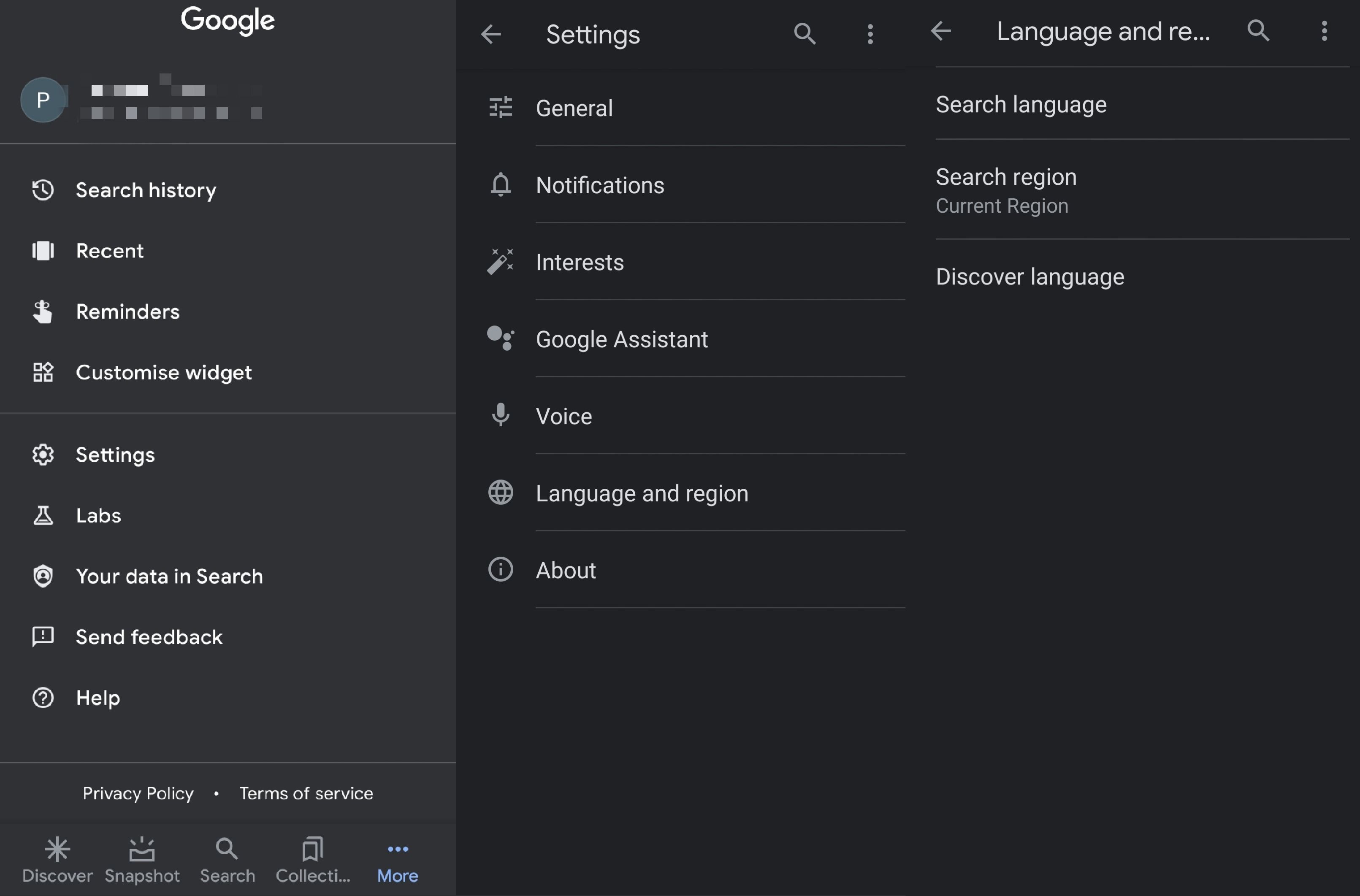
Visual aids can enhance understanding and simplify complex processes. To facilitate the comprehension of changing language settings on a mobile device, consider creating a visual guide or table.
This guide can Artikel the steps involved, accompanied by screenshots or illustrations to provide a visual representation of each action.
Visual Guide
- Step 1:Access the device’s settings.
- Step 2:Locate the language options section.
- Step 3:Select the desired language from the available options.
- Step 4:Confirm the language change.
Screenshots or Illustrations
Include screenshots or illustrations to depict the user interface and the actions involved in each step. These visuals can provide a clear and intuitive understanding of the process.
Questions Often Asked
How do I change the language on my Android phone?
Navigate to Settings > System > Languages & input > Languages > Add a language.
How do I change the language on my iPhone?
Go to Settings > General > Language & Region > iPhone Language.
How do I change the keyboard language on my phone?
On Android: Settings > System > Languages & input > Virtual keyboard > Manage keyboards. On iOS: Settings > General > Keyboard > Keyboards.
How do I add multiple languages to my phone?
On Android: Settings > System > Languages & input > Languages > Add a language. On iOS: Settings > General > Language & Region > iPhone Language > Add Language.
How do I change the language in a specific app?
Many apps have their own language settings. Check the app’s settings menu for options.
