In today’s globalized world, navigating online platforms in different languages is crucial. YouTube, as one of the most popular video-sharing platforms, offers content in a wide range of languages. Understanding how to change YouTube language to English can significantly enhance your viewing experience, making it more accessible and enjoyable.
This comprehensive guide will provide you with step-by-step instructions, troubleshooting tips, and insights into the benefits of language customization on YouTube.
Changing Language on Desktop

To change the language on YouTube for desktop browsers, follow these steps:
- Sign in to your YouTube account.
- Click on your profile picture in the top-right corner of the screen.
- Select “Settings” from the drop-down menu.
- In the left-hand menu, click on “Language”.
- Select your desired language from the drop-down menu.
- Click on “Save” to apply the changes.
Available Languages
YouTube supports a wide range of languages, including:
- English
- Spanish
- French
- German
- Portuguese
- Italian
- Russian
- Chinese
- Japanese
- Korean
Troubleshooting
If you encounter any issues when changing the language on YouTube, try the following:
- Make sure that you are signed in to your YouTube account.
- Clear your browser’s cache and cookies.
- Try using a different browser.
- Contact YouTube support for assistance.
Changing Language on Mobile App
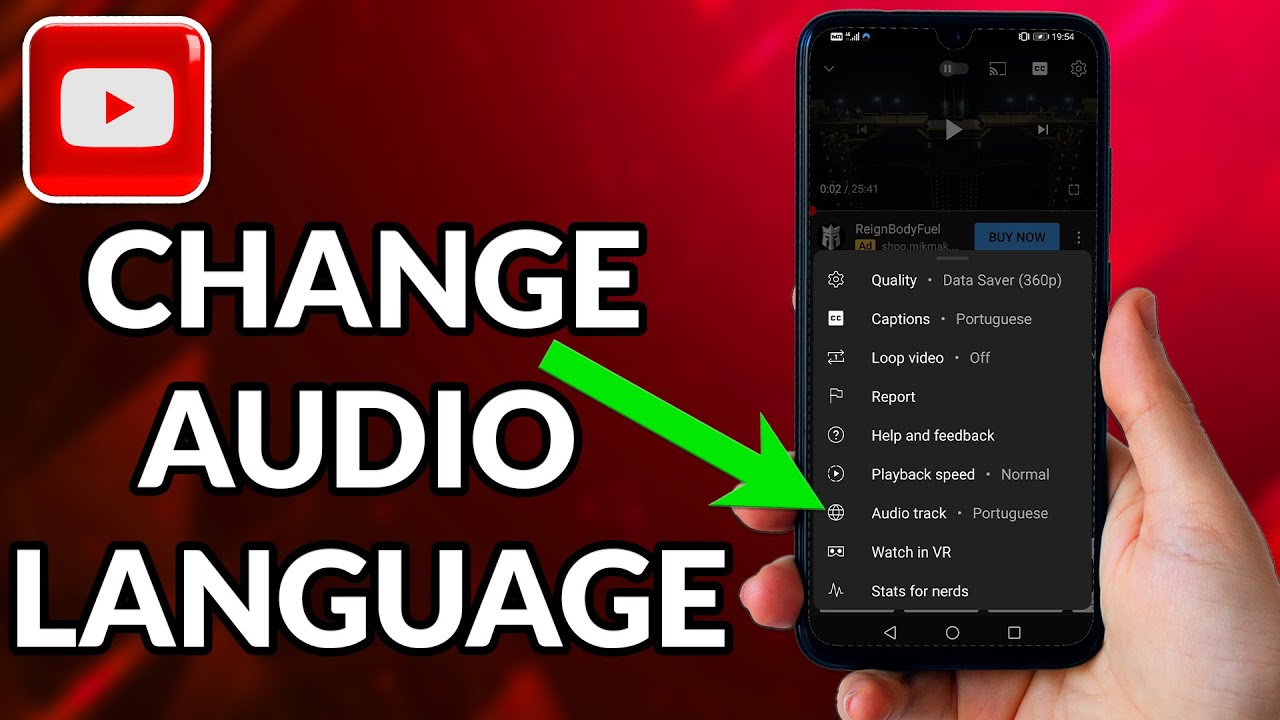
Changing the language on the YouTube mobile app is a simple process that can be completed in just a few steps.
Step-by-Step Guide
- Open the YouTube app on your mobile device.
- Tap on your profile picture in the top right corner.
- Select “Settings” from the menu.
- Scroll down and tap on “Language”.
- Select your desired language from the list.
- Tap on “OK” to save your changes.
Your YouTube app will now be displayed in your chosen language.
Automatic Language Detection
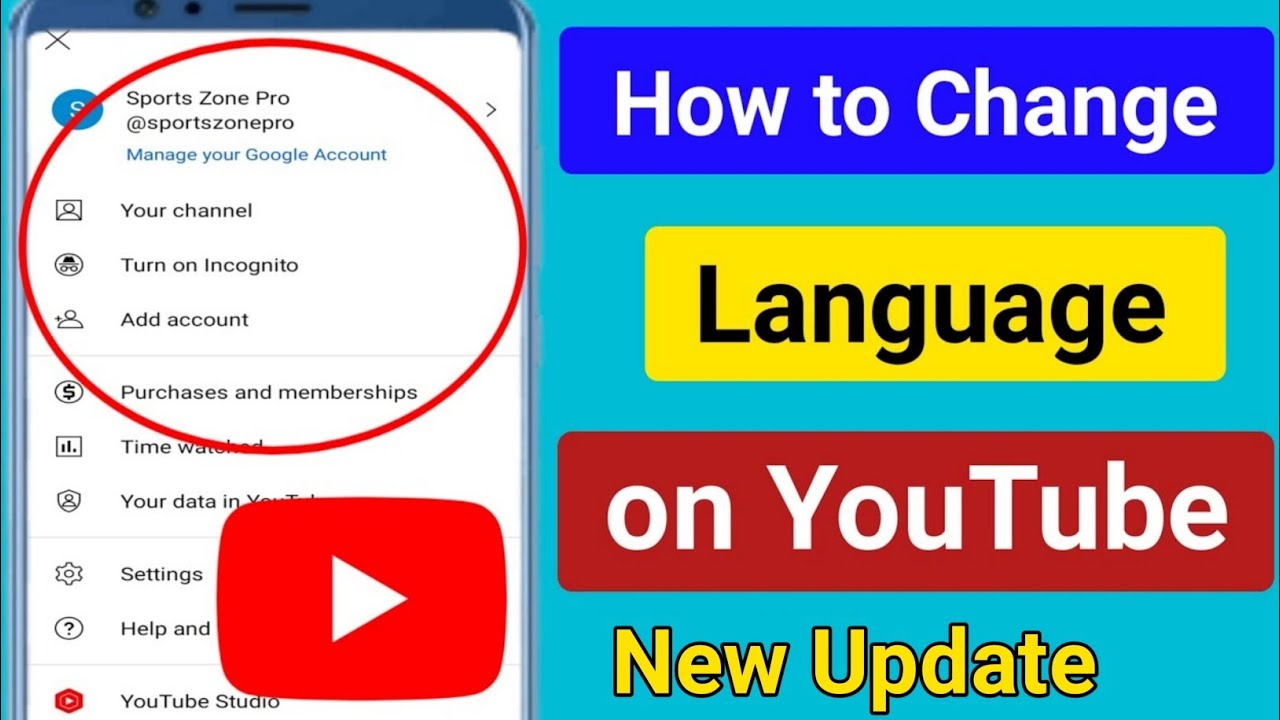
YouTube automatically detects the user’s preferred language to personalize their experience. This detection is based on various factors, including browser language settings, IP address, and user history.
The algorithms used for language detection analyze the user’s interactions with YouTube, such as the videos they watch, the comments they leave, and the searches they perform. This information is then used to create a language profile for each user.
Browser Language Settings
The language settings in the user’s browser are one of the primary factors that influence language detection. When a user visits YouTube, the platform checks the browser’s language settings and uses the preferred language as the default language for the interface.
IP Address, How to change youtube language to english
The user’s IP address can also be used to infer their preferred language. YouTube tracks the IP addresses of users and associates them with specific geographic regions. This information can be used to determine the most likely language spoken in that region.
User History
YouTube also takes into account the user’s history on the platform when detecting their preferred language. This includes the videos they have watched, the comments they have left, and the searches they have performed. This information can help YouTube refine its language detection over time.
The information gathered through automatic language detection is used by YouTube to personalize the user experience. This includes displaying the interface in the user’s preferred language, recommending videos that are relevant to their interests, and providing subtitles in the user’s preferred language.
Subtitles and Closed Captions
Changing the language on YouTube affects the availability and display of subtitles and closed captions.
To change YouTube’s language to English, navigate to the settings menu and select the appropriate option. Alternatively, you can explore the official YouTube Help Center for detailed instructions. Notably, the official language of Slovakia is Slovak. For further insights into the languages spoken in Slovakia, refer to this comprehensive resource: What Language is Spoken in Slovakia.
Returning to the YouTube language settings, users can customize their experience by selecting their preferred language from a wide range of options.
When the language is changed, YouTube will attempt to provide subtitles or closed captions in the selected language, if available. If subtitles or closed captions are not available in the selected language, they may be available in another language or may not be available at all.
Example
For example, if a video is in English and the language is changed to Spanish, YouTube will attempt to provide Spanish subtitles or closed captions if they are available. If Spanish subtitles or closed captions are not available, YouTube may provide English subtitles or closed captions instead, or may not provide any subtitles or closed captions at all.
Interface Elements
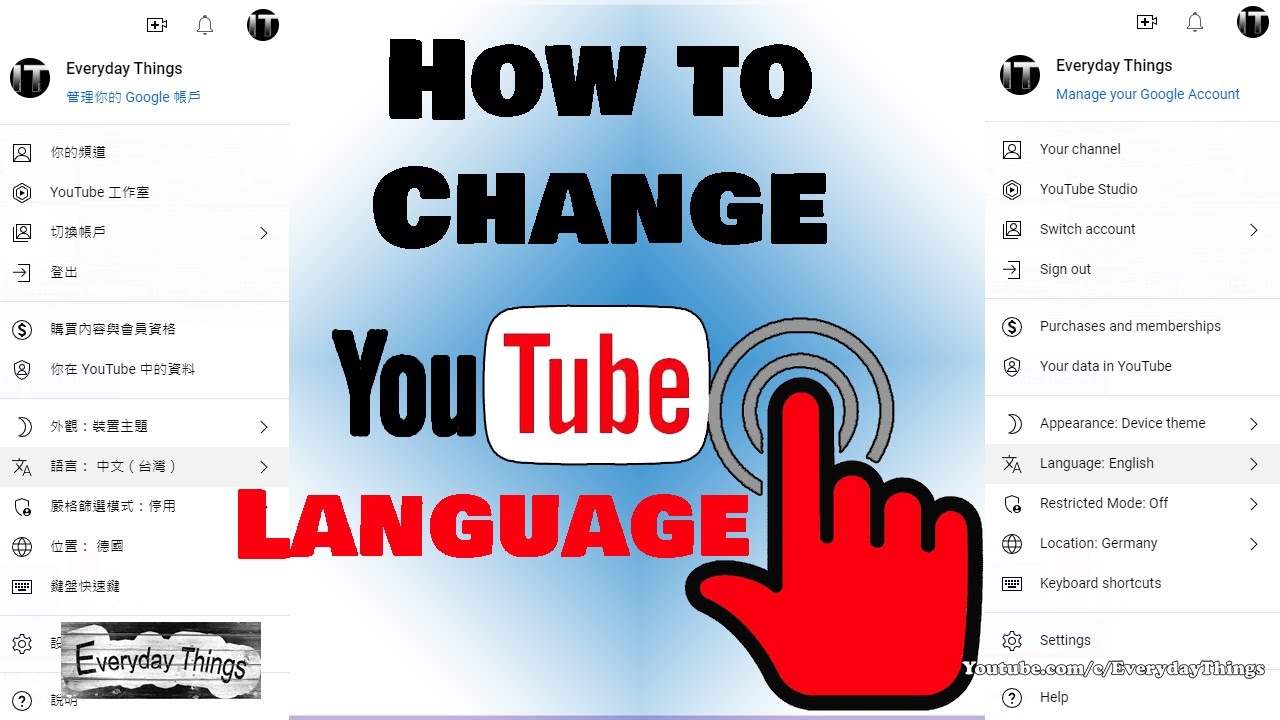
Changing the language on YouTube not only modifies the text displayed in the interface but also alters the icons used throughout the platform.
For example, when switching the language from English to Spanish, the “Home” button changes from “Home” to “Inicio,” and the “Search” button changes from “Search” to “Buscar.” Additionally, the icons for various actions, such as “Like,” “Dislike,” and “Share,” are also translated into the selected language.
Text Changes
- All text displayed in the YouTube interface, including menu options, button labels, and video titles and descriptions, is translated into the selected language.
- The language change applies to both the desktop and mobile versions of YouTube.
Icon Changes
- The icons used throughout the YouTube interface are also translated into the selected language.
- This includes icons for actions such as “Like,” “Dislike,” “Share,” “Add to Playlist,” and “Watch Later.”
Video Recommendations
Changing the language of your YouTube account may affect the video recommendations you receive. YouTube’s recommendation algorithms are based on a variety of factors, including your watch history, search history, and demographics. When you change the language of your account, YouTube will adjust its recommendations to reflect the new language preference.
The algorithms that determine YouTube’s video recommendations are complex and constantly evolving. However, some of the key factors that are taken into account include:
Watch History
- The videos you have watched in the past
- The amount of time you have spent watching each video
- The frequency with which you have watched each video
Search History
- The videos you have searched for in the past
- The frequency with which you have searched for each video
Demographics
- Your age
- Your gender
- Your location
When you change the language of your YouTube account, YouTube will use the new language preference to adjust the recommendations you receive. This may result in you seeing more videos in the new language, as well as videos that are more relevant to your interests in the new language.
Benefits of Changing Language
Changing the language on YouTube offers several advantages, enhancing the accessibility, understanding, and overall user experience of the platform.
Improved Accessibility and Understanding
For non-native English speakers, changing the language to their native tongue removes language barriers, allowing them to fully comprehend the content. This improves accessibility and makes YouTube a more inclusive platform for a global audience.
Enhanced User Experience
When the language aligns with the user’s preferences, the user experience is significantly enhanced. The interface becomes more intuitive, navigation becomes easier, and the content becomes more engaging. This leads to increased satisfaction and a more enjoyable experience.
Improved Comprehension
Changing the language can greatly improve comprehension, especially for complex or technical content. When the information is presented in the user’s native language, they can better grasp the concepts, follow the arguments, and understand the nuances of the content.
Limitations and Troubleshooting
Changing the language of YouTube may have certain limitations and potential issues:
Some languages may not be fully supported on YouTube. For example, some languages may not have complete translations for all features or may only be partially supported. Additionally, certain features, such as automatic caption generation, may not be available in all languages.
Troubleshooting
- If you are experiencing issues with changing the language of YouTube, you can try the following troubleshooting tips:
- Make sure that you are using the latest version of the YouTube app or website.
- Try clearing the cache and cookies of your browser or app.
- Restart your device.
- If you are still having issues, you can contact YouTube support for assistance.
Supported Languages
YouTube supports a wide range of languages. However, the availability of specific languages may vary depending on your region and device. Here is a list of the most commonly supported languages:
- English
- Spanish
- French
- German
- Portuguese
- Russian
- Chinese
- Japanese
- Korean
Customizing Language Settings
Users have the ability to customize language settings on YouTube for a personalized viewing experience. This feature allows them to set preferred languages for specific channels or individual videos.
Customizing language settings enhances accessibility and engagement by enabling users to consume content in their preferred languages, improving comprehension and overall user experience.
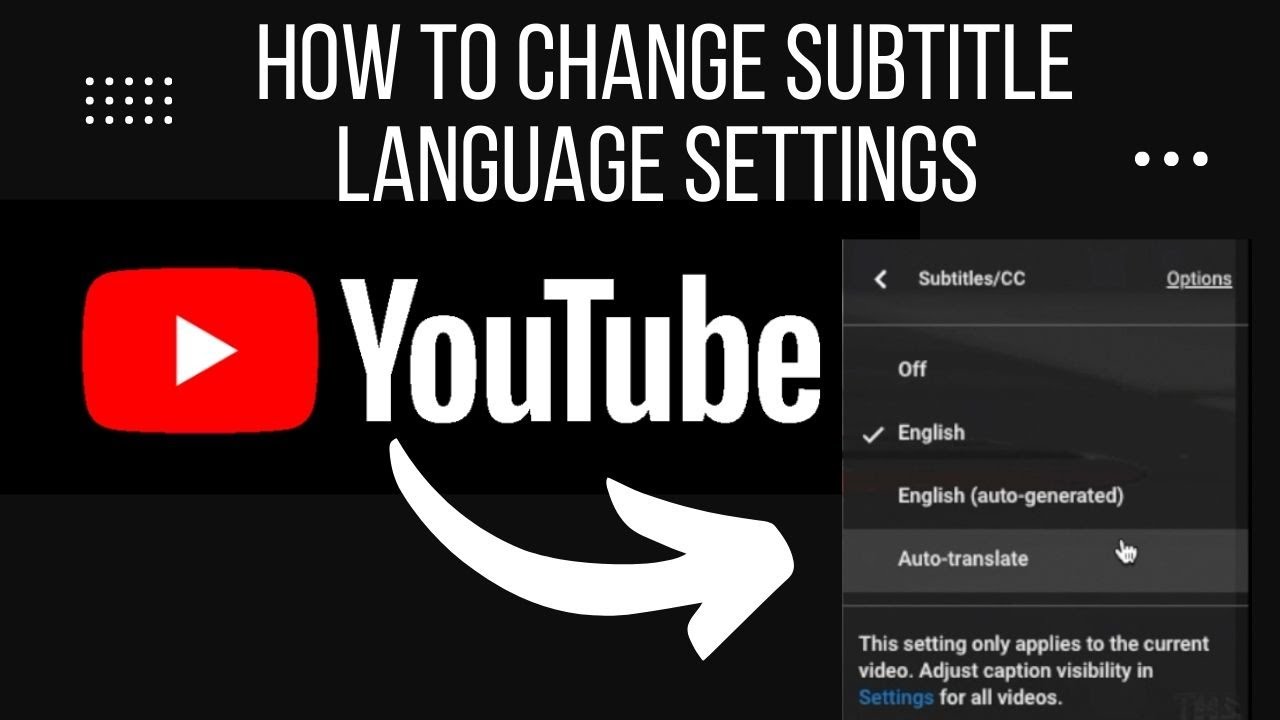
If you’re having trouble understanding YouTube videos in your current language, you can easily change the language to English. To do this, simply click on the “Settings” icon in the bottom right corner of the video player and select “Subtitles/CC.” From there, you can choose “English” from the list of available languages.
Did Native Americans have a written language ? The answer is yes, but it was not a widespread or standardized system. Instead, different tribes developed their own unique writing systems, often based on pictographs or symbols. These systems were used for a variety of purposes, including recording history, communicating with other tribes, and passing down cultural knowledge.
However, with the arrival of European colonizers, many of these writing systems were lost or suppressed. Today, there are only a few remaining Native American writing systems that are still in use.
Changing Language for Specific Channels
- Visit the desired channel.
- Click on the “About” tab.
- Scroll down to the “Language” section.
- Select the preferred language from the drop-down menu.
Changing Language for Individual Videos
- Open the video you want to watch.
- Click on the “Settings” icon (gear-shaped).
- Select “Subtitles/CC” from the menu.
- Click on the “Auto-translate” tab.
- Choose the preferred language from the list.
| Language | Access |
|---|---|
| Preferred Language | Set in YouTube account settings |
| Channel-Specific Language | Set in channel’s “About” tab |
| Video-Specific Language | Set in video’s “Settings” menu |
Third-Party Tools: How To Change Youtube Language To English
Extensions and third-party tools can enhance language changing capabilities on YouTube.
Language Tools for YouTube
The Language Tools for YouTube extension for Google Chrome and Firefox allows users to change the language of YouTube videos with a single click. It offers support for multiple languages and provides options to set preferred languages and automatic language switching.
Auto Language Switcher for YouTube
Auto Language Switcher for YouTube is another Chrome extension that automates language switching based on the user’s browser language settings. It detects the user’s preferred language and automatically applies it to YouTube videos, ensuring a consistent viewing experience.
YouTube Enhanced
YouTube Enhanced is a comprehensive browser extension that includes a language switcher among its features. It allows users to quickly change the language of YouTube videos, as well as customize the interface and add other enhancements to the platform.
Accessibility Features
Changing the language of a YouTube video can significantly improve accessibility for users with language barriers. By providing videos in multiple languages, users can access and understand content that would otherwise be unavailable to them.
For example, a user who is deaf or hard of hearing may rely on closed captions to understand the content of a video. If the closed captions are not available in the user’s native language, they may not be able to access the information in the video.
Accessibility Features Available
YouTube offers a range of accessibility features to support users with disabilities, including:
- Closed captions: Textual representation of the audio content of a video, which can be translated into multiple languages.
- Audio descriptions: Narration that describes the visual content of a video, making it accessible to users who are blind or have low vision.
- Keyboard shortcuts: Allow users to navigate and control YouTube using only their keyboard.
- Screen reader support: Enables users who are blind or have low vision to access YouTube using a screen reader.
Best Practices for Accessibility
To make content accessible to users with language barriers, follow these best practices:
- Provide closed captions and transcripts in multiple languages.
- Use clear and concise language that is easy to understand.
- Avoid using slang or jargon.
- Use visuals and graphics to support the content.
- Test your content with users who have language barriers.
Testing for Accessibility
To ensure that your content is accessible to users with language barriers, test it using the following methods:
- Use a screen reader to listen to the content.
- Have a native speaker of the target language review the content.
- Use an automated accessibility checker.
Impact on YouTube Community

YouTube’s global reach fosters a diverse community of users from different linguistic backgrounds. Changing the language on YouTube has significant implications for this community.Multilingual content offers several benefits. It enhances accessibility for non-native speakers, allowing them to engage with content in their preferred language.
Additionally, it promotes cultural diversity and inclusivity, fostering a sense of belonging among viewers from different linguistic groups.However, language changes can also pose challenges. Inaccurate translations or lack of localized content can hinder understanding and diminish the overall user experience.
Moreover, managing multilingual content can be complex, requiring additional resources and effort from content creators.
Common Queries
How do I change the YouTube language on my desktop browser?
To change the YouTube language on your desktop browser, click on your profile picture in the top right corner of the screen. Then, select “Settings” from the drop-down menu. In the “Language” section, you can choose your preferred language from the list of available options.
Can I change the YouTube language on my mobile device?
Yes, you can change the YouTube language on your mobile device. Open the YouTube app and tap on your profile picture in the top right corner. Then, select “Settings” from the drop-down menu. Under the “General” tab, you can select your preferred language from the list of available options.
How do I translate subtitles and closed captions on YouTube?
To translate subtitles and closed captions on YouTube, click on the “Settings” icon in the bottom right corner of the video player. Then, select “Subtitles/CC” from the menu. In the “Subtitles/CC” menu, you can select your preferred language from the list of available options.
